In this lesson you will learn to
- Decide which tools an agent needs before granting any
- Grant MCP tools to an agent with least privilege
- Test an agent's tool use and check its sources
- Register an external MCP server and review the tools it exposes
Before you start
- Completion of the previous lesson, or any agent you can edit
- Permission in your workspace to create agents and MCP servers
An agent without tools can only write. An agent with tools can search, read and act, which is where most enterprise value is and where most risk is too. VDF AI uses the Model Context Protocol (MCP) for this: every tool an agent can call is an MCP tool with a name, a description and a parameter schema. Some are served by the platform itself; others come from MCP servers you register.
This lesson builds a fix-finder agent for the service desk. It takes a Windows or Microsoft 365 problem, searches the official documentation and answers with numbered steps and the page it used.
Step 1: Decide what the agent must reach
Write down the job and derive the tools from it, never the other way round.
- Job: find the official fix for a Microsoft product problem and cite it.
- Must reach: a web search and the ability to read one page.
- Must not reach: mailboxes, files, tickets or anything that can change a system.
This list is the grant you will make in Step 3. If a tool is not on it, the agent does not get it.
Step 2: Create the fix-finder agent
Create a new agent in Agent Builder exactly as in the first lesson: name it it_fix_finder, choose Text as the output format and pick your model. Write instructions that make the tools part of the method:
You help IT service desk engineers fix Windows and Microsoft 365
problems. Always search the web for the official Microsoft
documentation page before answering, and use only learn.microsoft.com
or support.microsoft.com pages. Give numbered steps in British English
and finish with the title and URL of the page you used. If you cannot
find an official page, say so.
The last sentence matters. An agent that is allowed to say “I could not find it” is less likely to invent an answer when its tools come back empty.
Step 3: Grant only the tools the job needs
In the Tools & Skills step the builder asks you to choose the MCP tools this agent can call. Open Select tools and search by name. Every entry carries an MCP badge and a description of what it does.
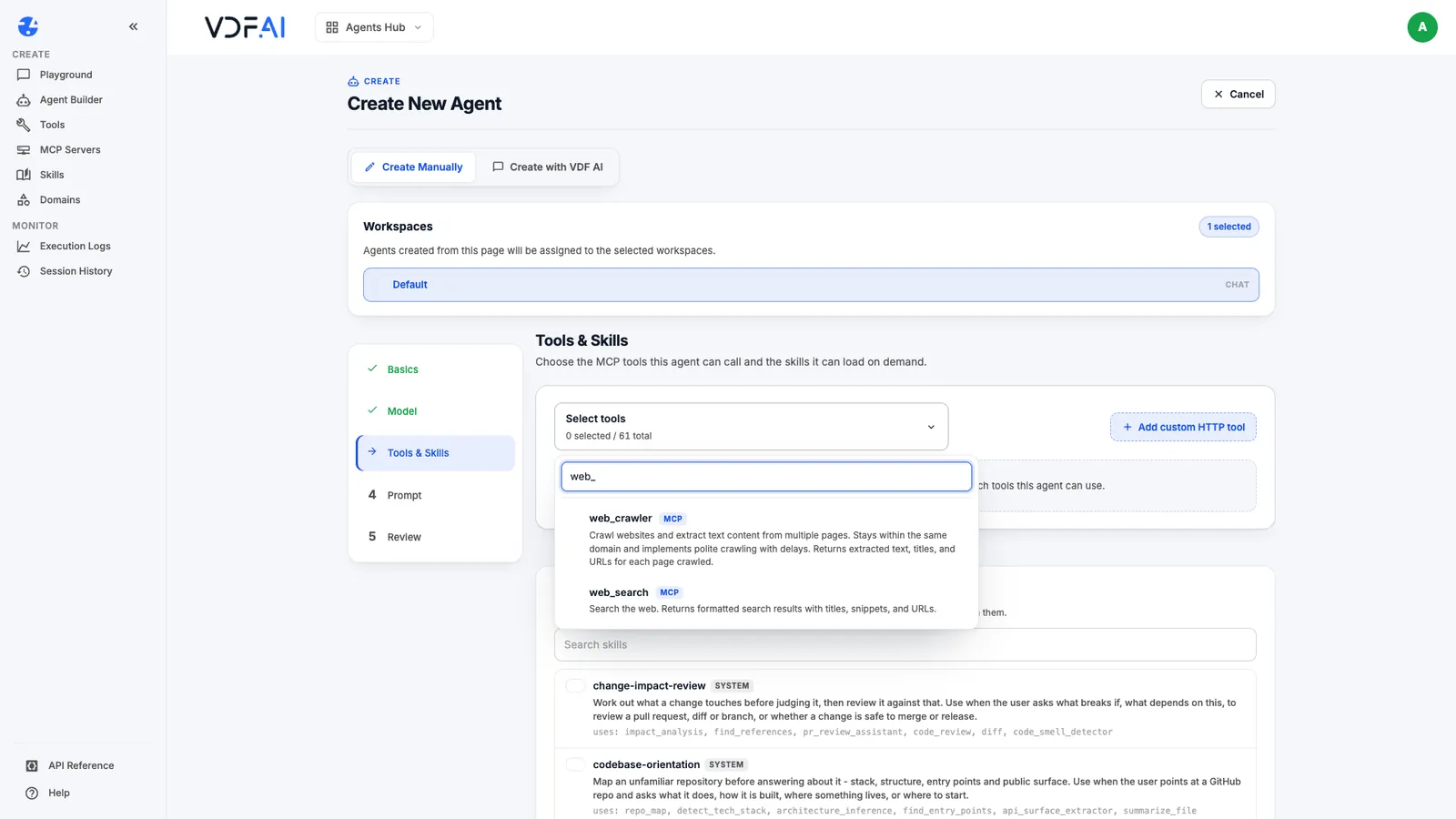
Grant two tools: web_search, which returns results with titles, snippets and URLs, and web_crawler, which reads a page. Leave everything else unselected.
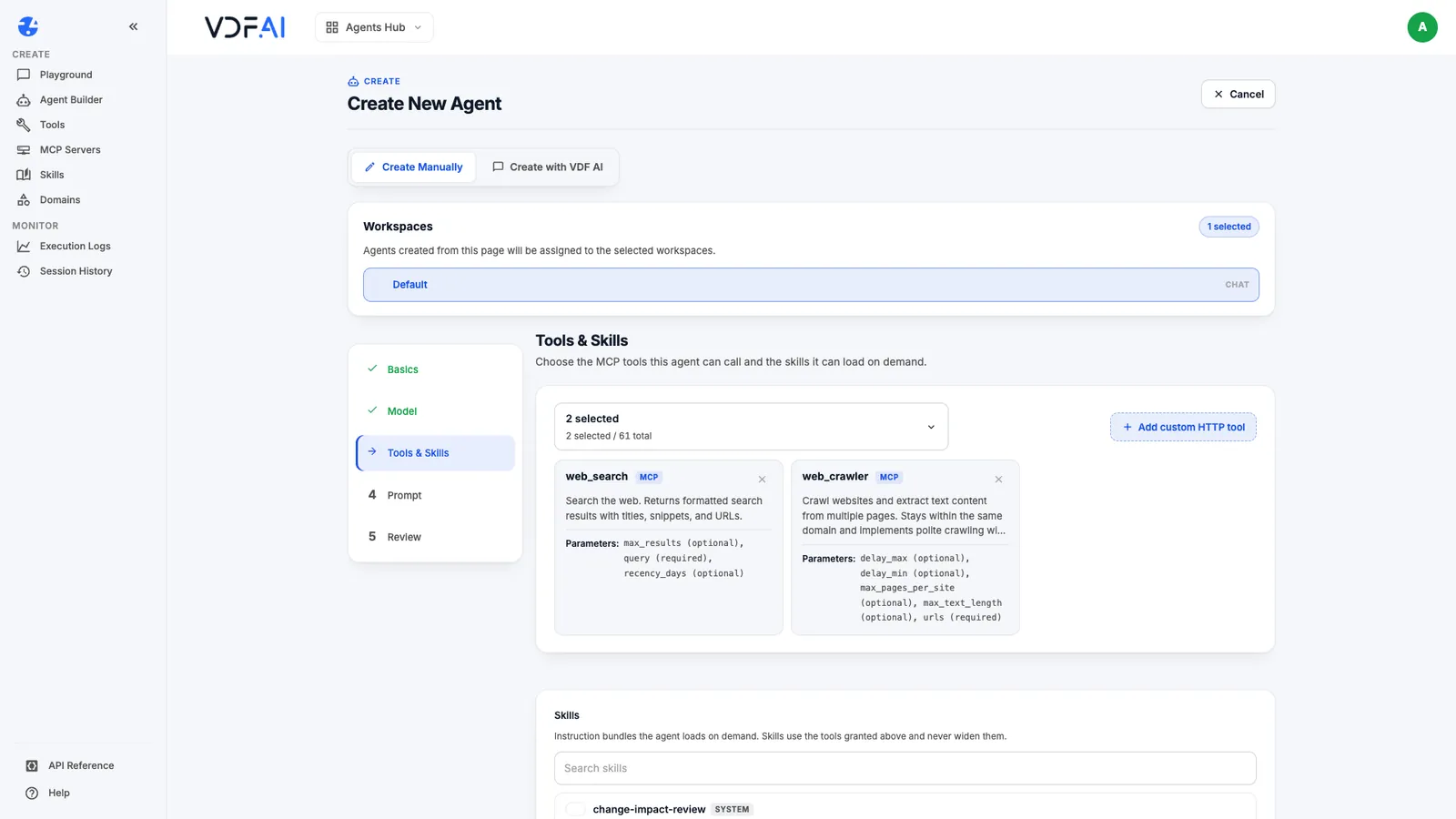
Below the tools sits the Skills list. Skills are instruction bundles an agent loads on demand, and as the builder says, they use the tools granted above and never widen them. That is a useful guarantee: you can give an agent more method without giving it more reach.
Step 4: Test the tool calls in the Playground
Create the agent, open Playground, select it_fix_finder and ask a real question:
A user says Outlook calendar changes are not syncing to other devices. What are the official steps to rebuild the Outlook offline data file (OST)?
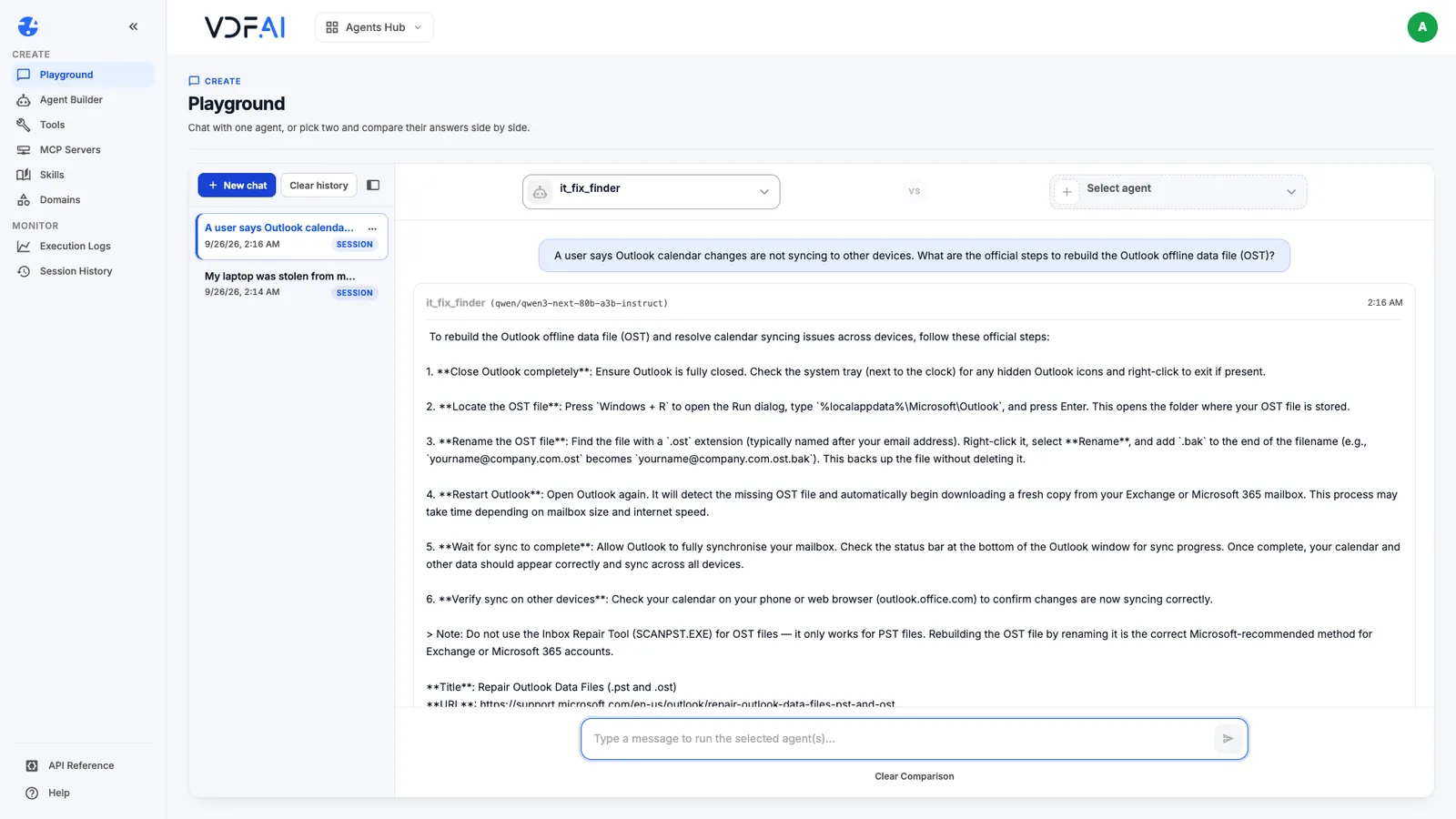
In our test the agent searched, answered in about twenty seconds with six numbered steps, and cited the Microsoft Support article on repairing Outlook data files. Check three things on every tool-using answer: the source is on the allowed domains, the steps match the page, and nothing was added that the page does not say. Execution Logs in Agents Hub keeps the prompt, the output, the token usage and the timing of each run, so you can review answers after the fact.
Step 5: Register an external MCP server
Tools can also come from MCP servers outside the platform. Open MCP Servers and choose Add MCP Server. The form has three parts.
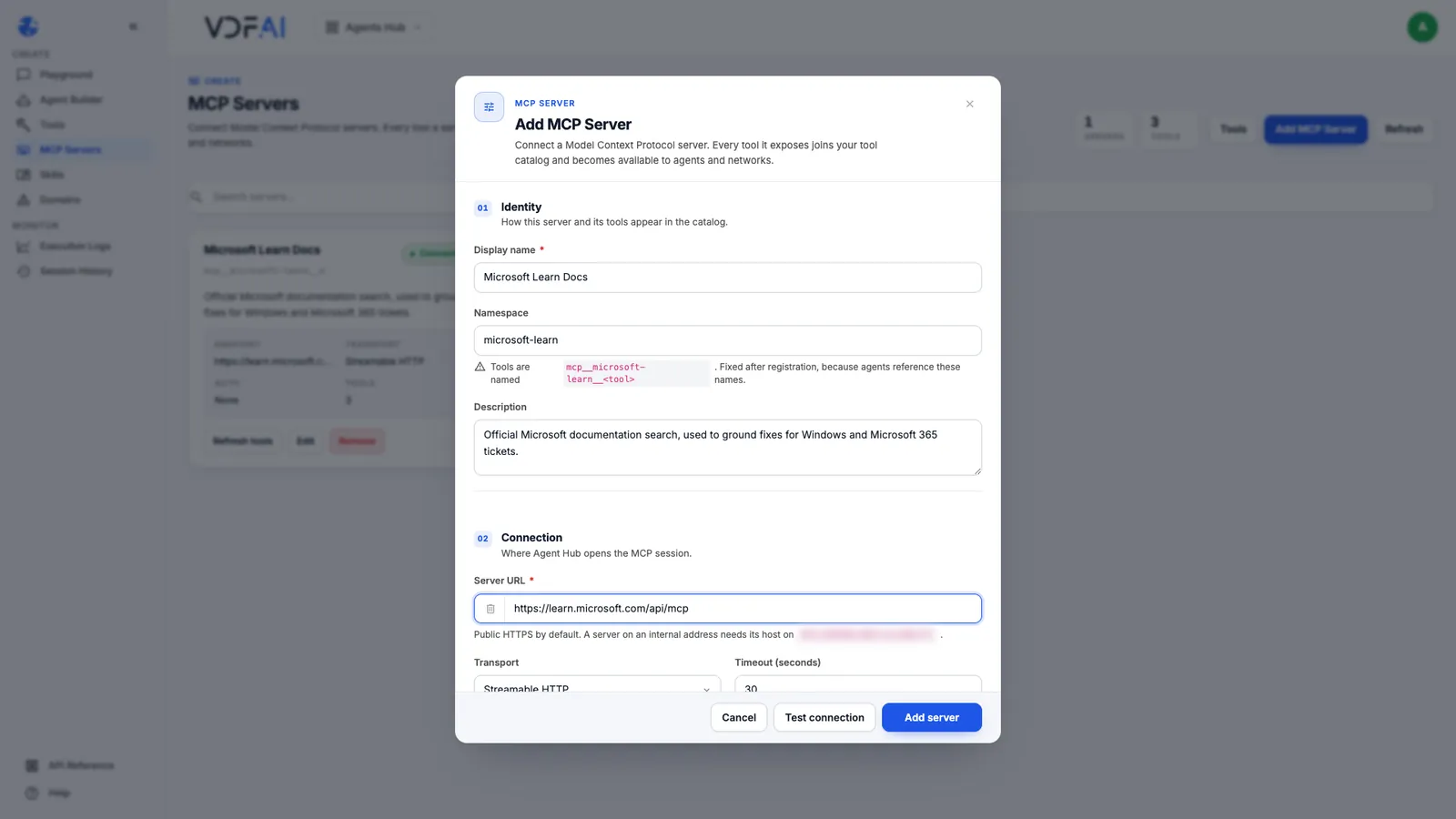
- Identity. A display name and a namespace. Tools are named
mcp__namespace__tool, and the namespace is fixed after registration because agents reference those names. Choose it as carefully as a package name. - Connection. The server URL, the transport (Streamable HTTP, or HTTP with server-sent events for older servers) and a timeout. Public HTTPS addresses work by default; a server on an internal address has to be allowed by your platform administrator first.
- Authentication. None, a bearer token or an API key header. Credentials are stored encrypted and never shown again after saving.
For practice, Microsoft publishes a documentation server that needs no credentials: https://learn.microsoft.com/api/mcp. Enter it with the namespace microsoft-learn.
Step 6: Review the discovered tools before anyone relies on them
Choose Test connection. VDF AI opens an MCP session and lists what the server offers before anything is saved.
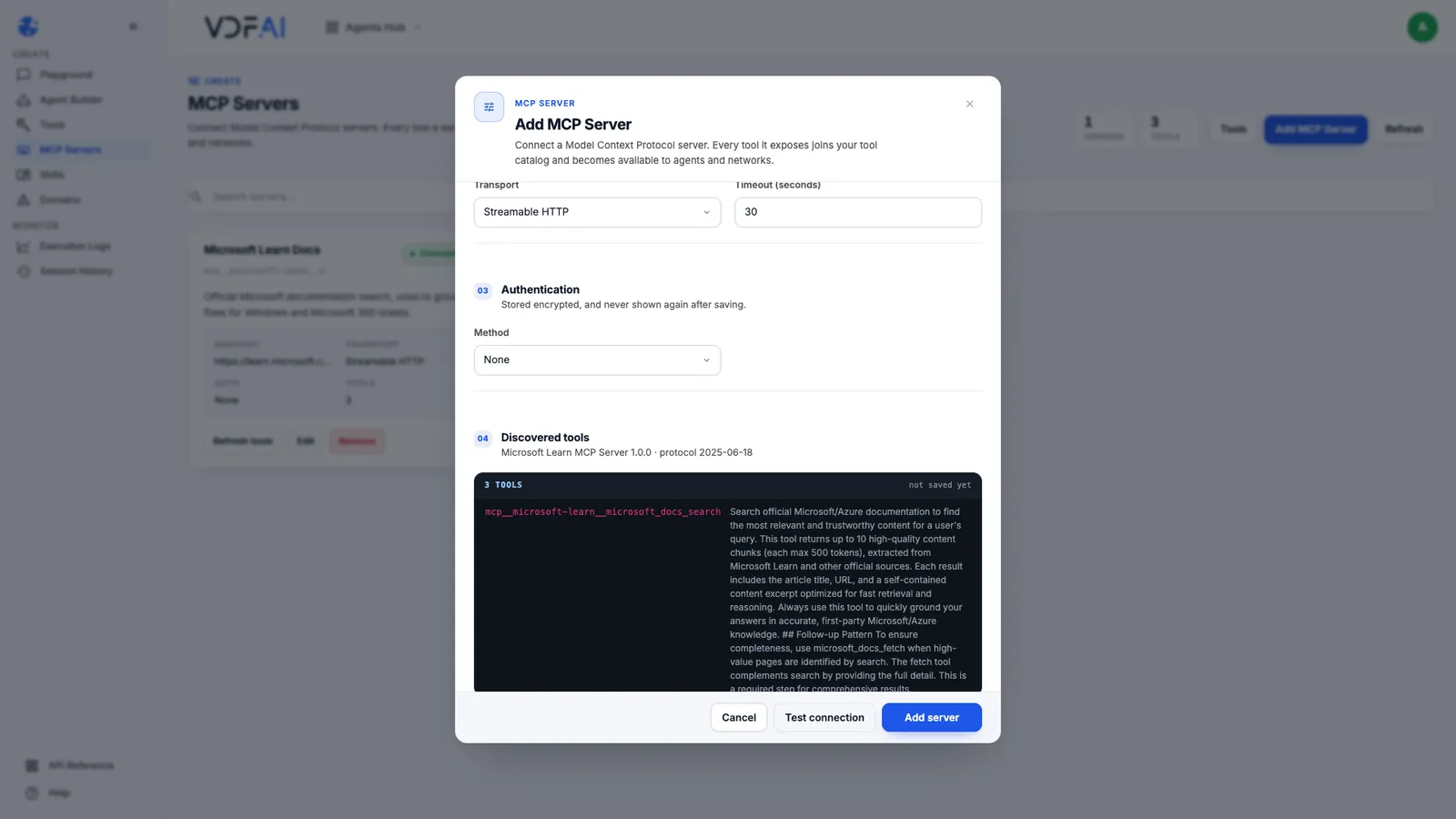
Here the server identifies itself as Microsoft Learn MCP Server 1.0.0 and exposes three tools: documentation search, code sample search and page fetch. Read every description. They are written for the model, and they include instructions such as always following a search with a fetch. They will steer any agent that uses them.
Add the server when you are satisfied. It appears in the list as Connected, with its tool prefix, endpoint, transport and authentication method.
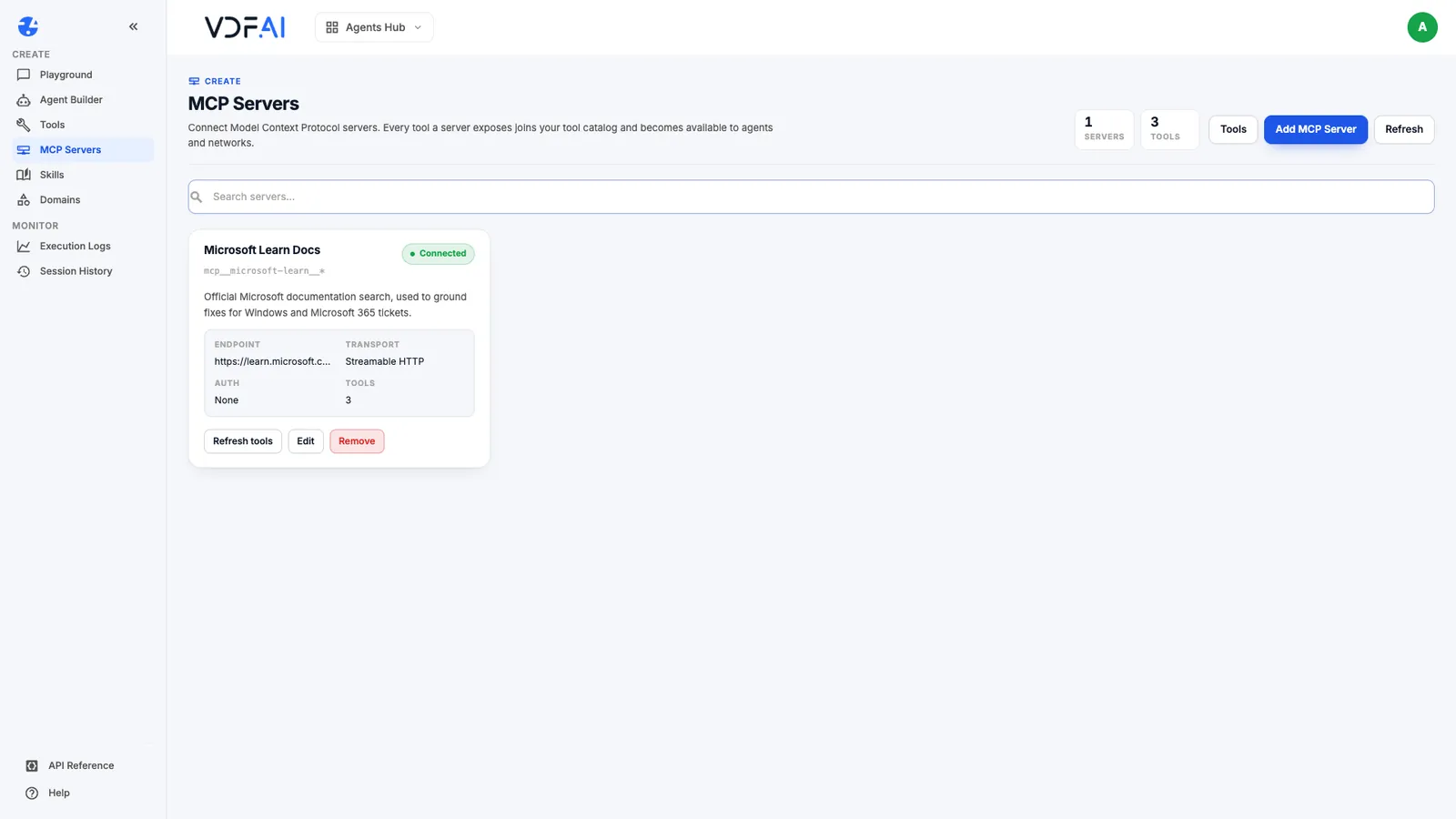
A registered server is private to you until you share it; administrators can publish servers to the whole company. Treat each new server as a change to what your agents could reach: review its tools and agree which agents should use them before anyone does, exactly as you did for the built-in tools in Step 3.
Check your understanding
Why grant web_search and web_crawler but not the other tools in the list?
Because the job is to find and read one official documentation page. Every extra tool is extra reach the agent does not need, and reach an administrator would have to justify.
What does the namespace do when you register an MCP server, and why does it matter?
It prefixes every tool the server exposes, as mcp__namespace__tool. Agents refer to tools by that name, so the namespace is fixed after registration.
Why read a new server's tool descriptions before using it?
The descriptions are instructions the model reads when deciding what to call. They shape behaviour as much as your own prompt does, so review them like code.
Reference
Build it in VDF AI
Follow along in your own workspace. The Starter plan is free, with no credit card.
Try VDF AI freeSee it on your own data
Walk through this with a VDF AI engineer, on your infrastructure and your use case.
Book a demoGo deeper with an instructor
Production Agentic Systems: Multi-Agent, RAG and Governance: four live half-days, free for customers and partners.
See the course