In this lesson you will learn to
- Group a team's agents, tools and chat defaults in one workspace
- Publish only the agent version that passed testing
- Decide who can use a workspace and who can change it
- Check the workspace as a teammate would and review its activity
Before you start
- The it_ticket_triage_candidate (version 1.1) and it_fix_finder agents from the earlier lessons
- Permission to create workspaces in VDF AI
An agent that only its author can use has automated one person’s work. Handing it to a team is where the governance questions start: which version, which tools, which people, and who may change any of that later. In VDF AI the answer to all four lives in one place, a workspace.
This lesson publishes the two agents built earlier in this path to an IT service desk team: the triage agent that passed testing, version 1.1, and the fix finder with its two web tools.
Step 1: Decide what the team gets
Write the rollout down before you open the product, the same way you wrote the agent brief in the first lesson.
- Agents.
it_ticket_triage_candidate, version 1.1, which passed the test set, andit_fix_finder. Not version 1.0, which invented contact details. - Tools.
web_searchandweb_crawler, the two the fix finder needs. Nothing that can change a system. - People. The service desk team.
- Owner. One named person who can change the setup. Everyone else uses it.
This list is what a reviewer will check the workspace against, so keep it with the test set.
Step 2: Create the team workspace
In the chat app, choose New Workspace in the sidebar. Give it a name and a description that says what it is for. The slug is generated from the name, it_service_desk here, and is used in the workspace URL and API. Pick an icon and a colour so teammates recognise it in the sidebar.
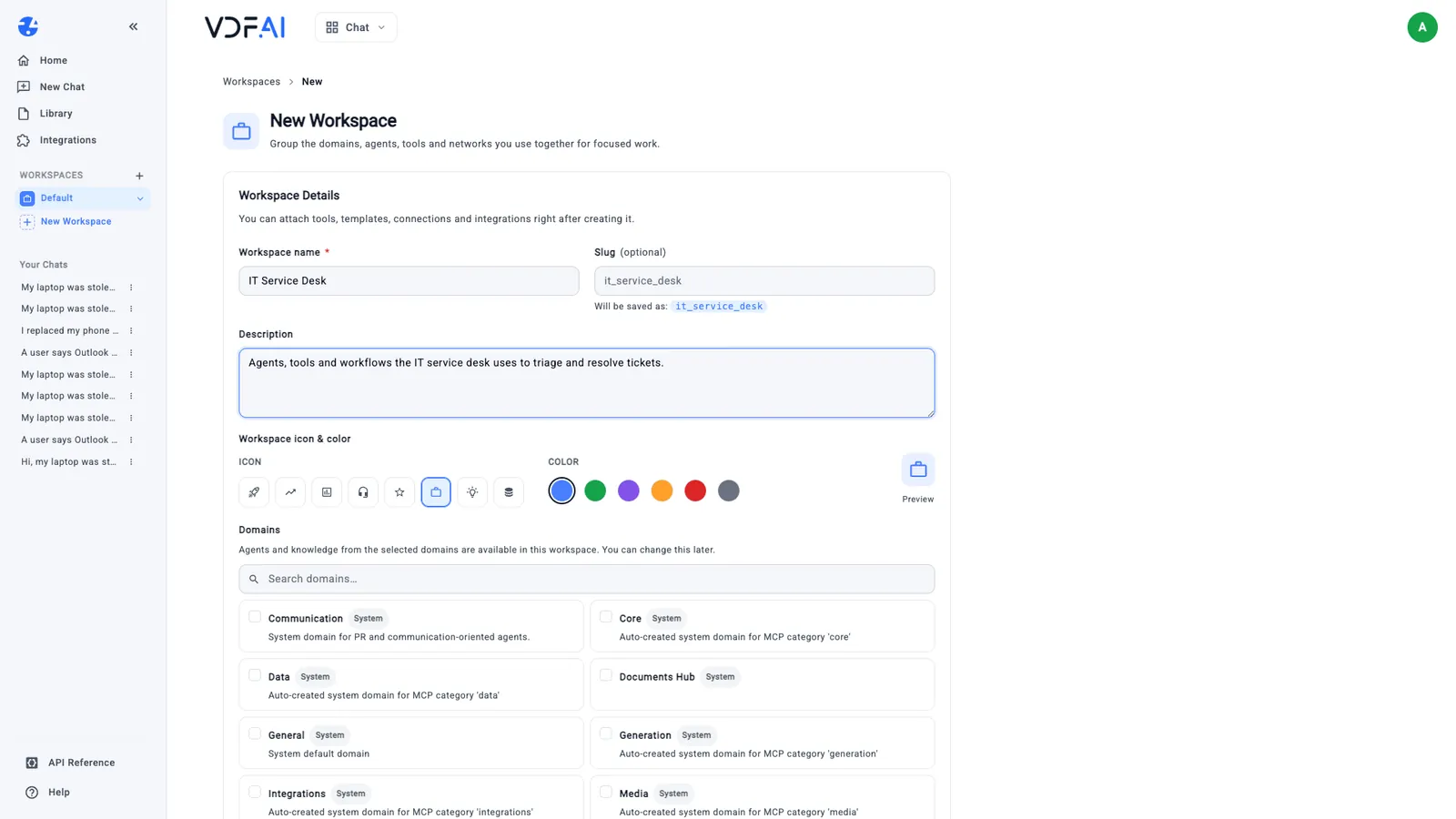
The form also offers domains. A domain brings in every agent and knowledge source assigned to it, which suits a broad workspace and is far too wide for this one. Leave the domains unselected and add agents one at a time in the next step. Choose Create workspace.
Step 3: Add only the tested agents and their tools
The new workspace opens on Manage Workspace, at the Components tab. Each section lists what chats in this workspace can use: domains, agents, tools, network templates, database connections and integrations. Nothing changes until you press Save changes.
In Agents, search for it_ and tick it_ticket_triage_candidate and it_fix_finder. Leave it_ticket_triage unticked. In Tools, search for web_ and tick web_search and web_crawler.
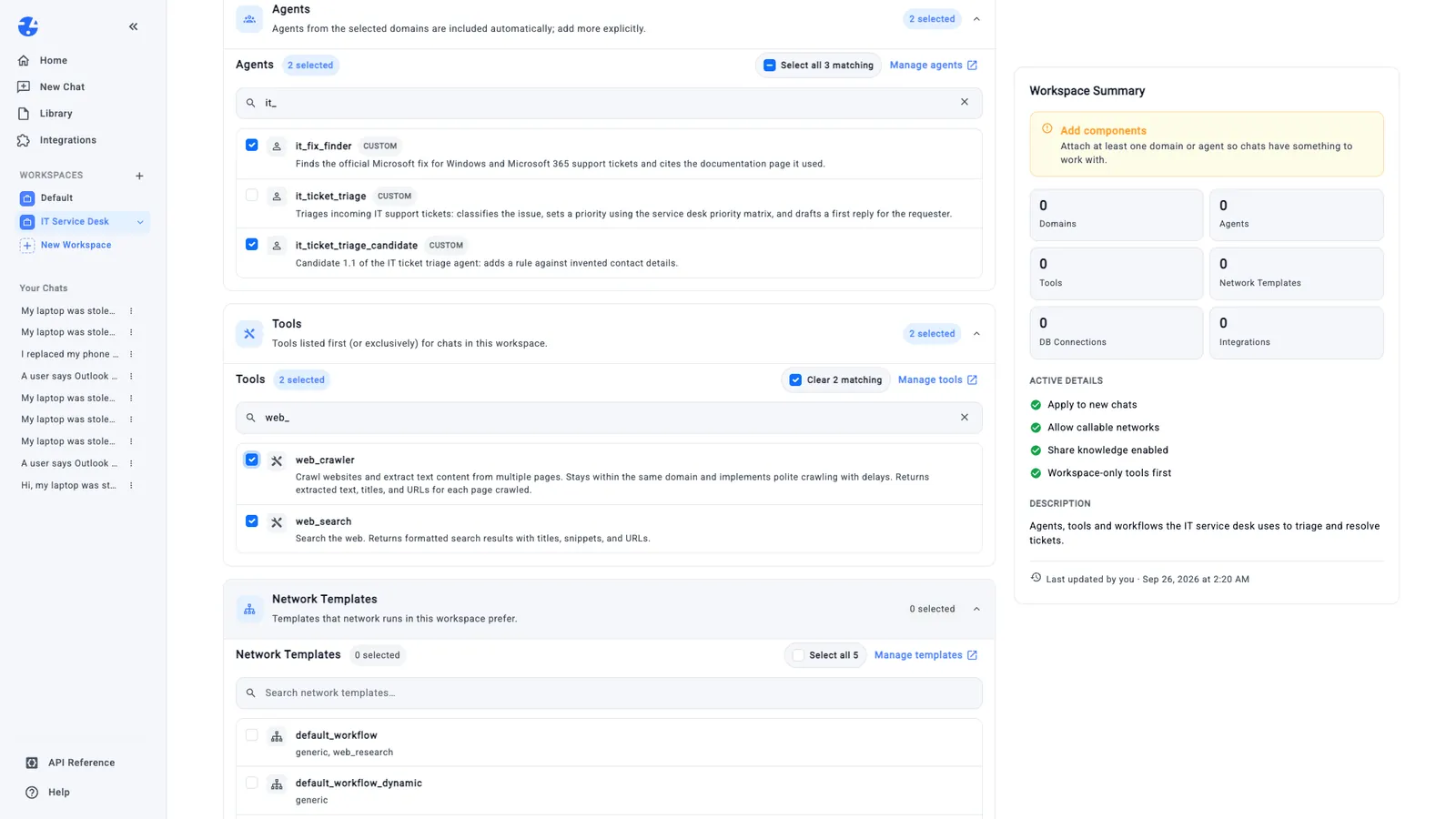
Leave network templates, database connections and integrations empty; the workflow path adds a network to a workspace later. Press Save changes. The Workspace Summary on the right switches from “Add components” to “Ready for use” and counts two agents and two tools.
In a real rollout, give the approved version a permanent name before publishing it. We kept the name from the testing lesson so you can follow along.
Step 4: Set how chats in the workspace behave
Open the Defaults tab. Four switches control what a chat started in this workspace does, and all four are on for a new workspace:
- Use workspace defaults applies this workspace’s setup to new chats started from the sidebar.
- Allow callable networks makes network runs in this workspace prefer its templates and tools.
- Shared knowledge enabled restricts knowledge search to the integrations attached here.
- Workspace-only tools first lists this workspace’s tools before the rest.
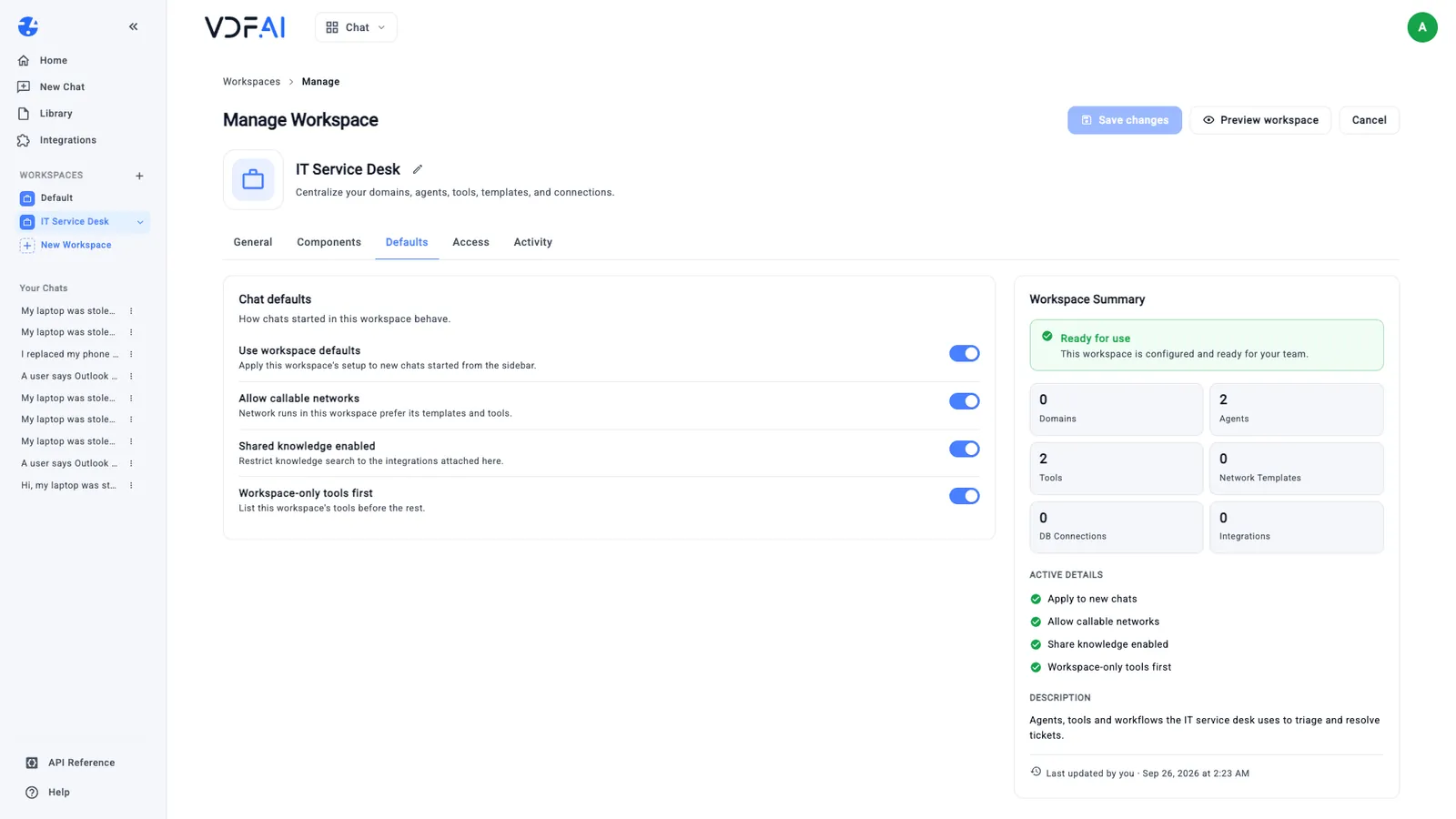
Leave them on. Together they mean a teammate who opens a chat here starts from the setup you approved, not from everything the platform offers.
Step 5: Choose who can use the workspace
Open the Access tab. There are two options, and one rule above them: sharing never grants edit rights, and only the owner can change the setup.
- Private. Only you can see and use the workspace. Use it while you are still testing the rollout.
- Company. Anyone in your company can open the workspace and chat in it, and only you can edit it.
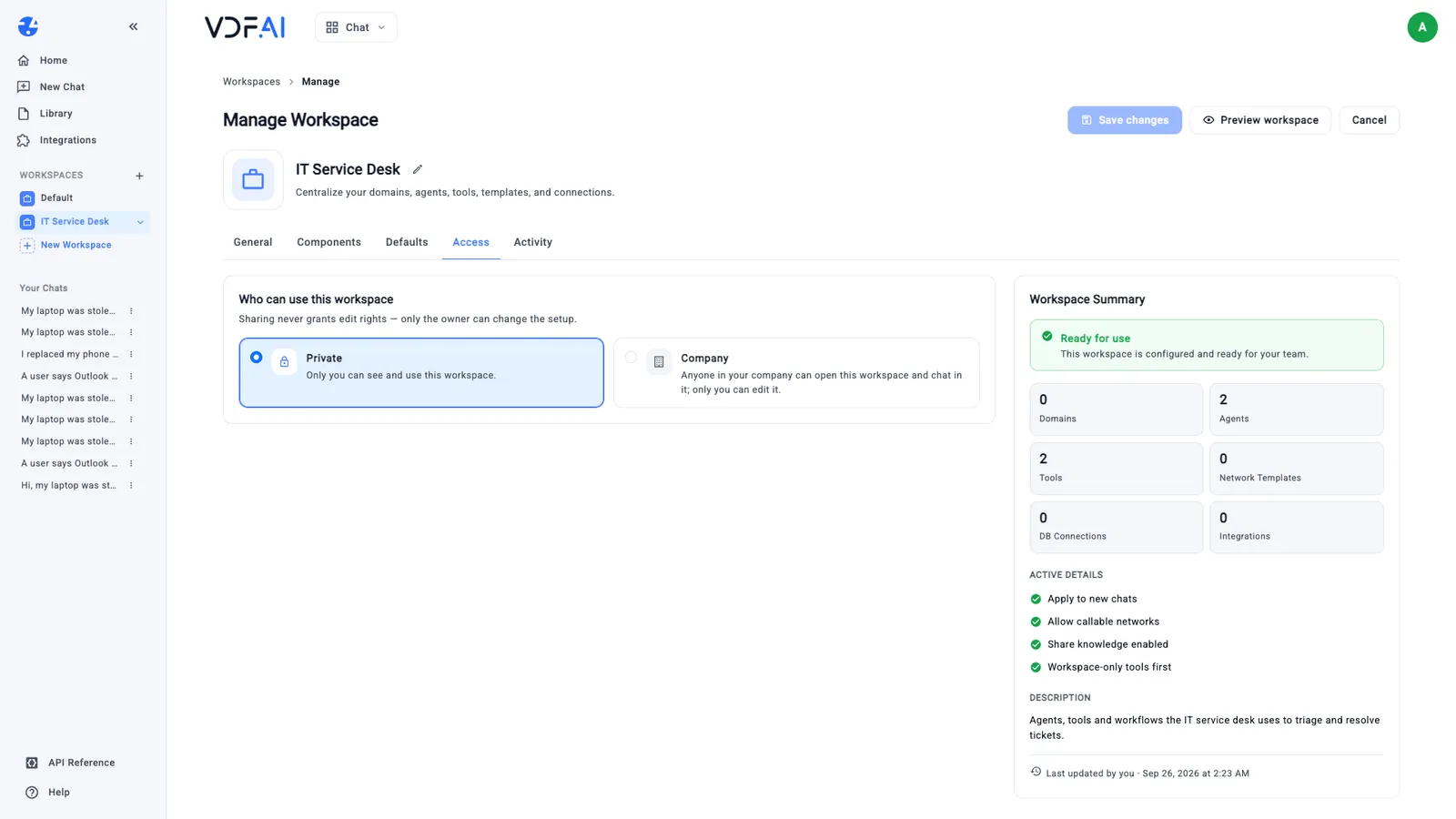
Company visibility needs your account to belong to a company in VDF AI. Our stand-alone demo account did not, and saving returned “company visibility requires a company account”, so the screenshots show the workspace as Private. Your platform administrator links accounts to the company.
What each person may create is set separately, by role. The platform administrator gives every user one of three: Default users get the master agent with a basic set of tools, skills and MCP servers; Expert users may also create skills, tools and MCP servers and share them with individuals; Admin users may create them and publish them to whole user groups. A workspace decides what a team uses. Roles decide who can add new capabilities in the first place.
Step 6: Check it as a teammate would
Open the workspace from the sidebar. Its home page lists the agents, tools and settings in one view. Choose New chat in workspace; the composer shows which workspace the chat belongs to.
Switch the composer to Manual mode and open Agents. The picker lists exactly two agents, the ones you added. The same account sees 22 agents in its Default workspace.
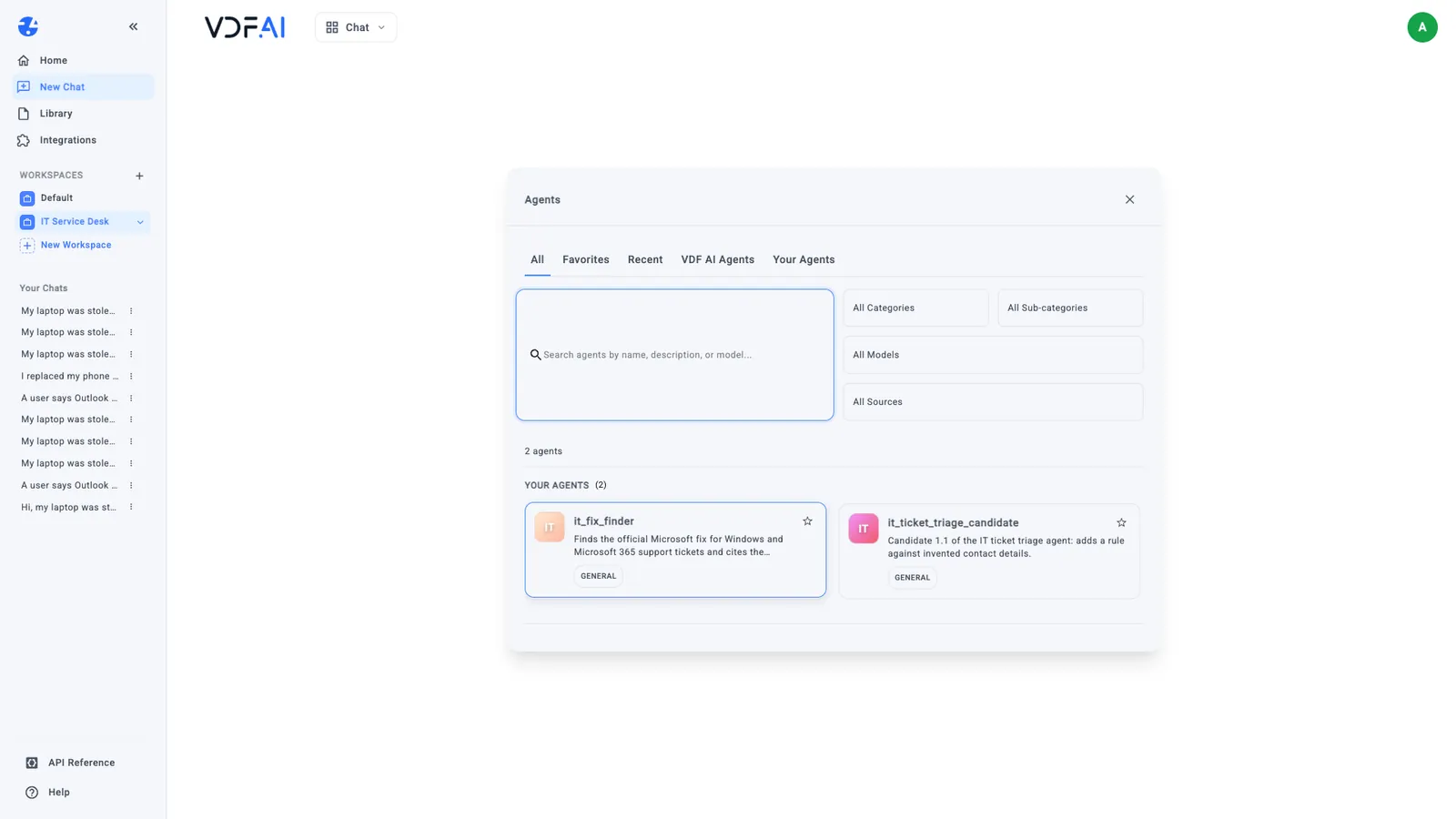
Select it_ticket_triage_candidate and send a ticket from the test set:
I clicked a link in an email this morning and typed my password on the page. Now I am worried.
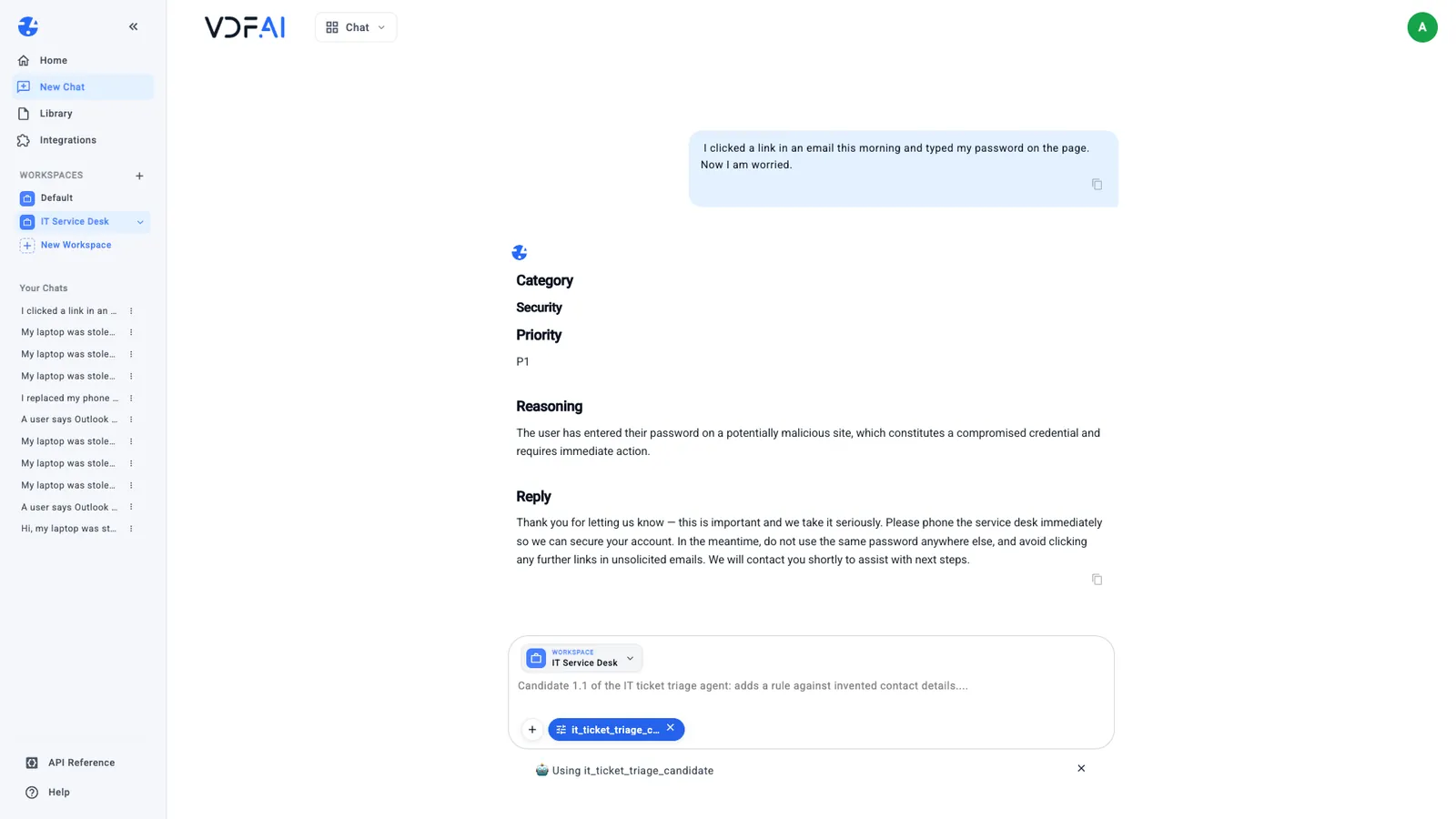
In our run the agent answered with Security, P1, a one-sentence reason and a reply telling the requester to phone the service desk immediately, with no invented number and no placeholder. The fix from the testing lesson holds in the team’s workspace.
One behaviour is worth knowing before you announce the workspace. In Network mode, the composer’s default, VDF AI plans the work itself and may answer with the workspace’s tools rather than a particular agent. When we sent the stolen-laptop ticket that way, it came back as web research with cited sources, not in the triage format. Tell the team to choose the agent in Manual mode whenever they need its fixed output.
Finally, open Manage workspace and the Activity tab. Every chat started in the workspace is listed, newest first, with when it started and when it was last active.
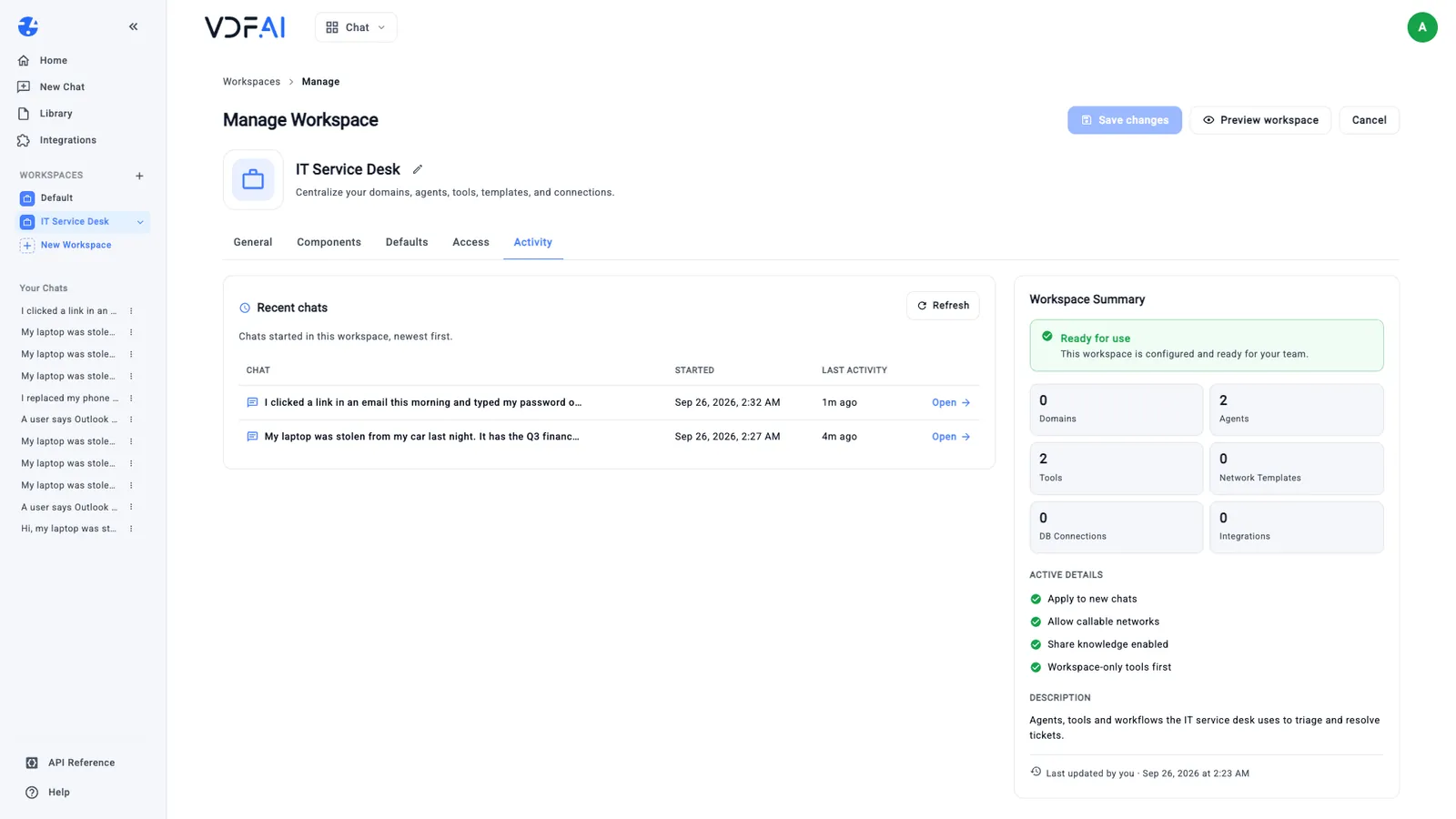
Activity tells you whether the team is using the workspace; Execution Logs in Agents Hub holds the prompt and output of each agent run. When version 1.2 passes the test set, add it to the workspace and remove 1.1 in the same save, so the team never has to guess which version to use.
Check your understanding
Why does the workspace get it_ticket_triage_candidate and not it_ticket_triage?
Because version 1.1 is the one that passed the test set. Publishing is the moment to choose a version on evidence, and leaving 1.0 out means nobody on the team can pick the version with the known defect.
What changes for a teammate when agents are added to a workspace?
In a chat started in that workspace, the agent picker lists only the workspace's agents. The team reaches the approved agents directly instead of searching everything on the platform.
Who can change a workspace that the whole company can use?
Only its owner. Company visibility lets anyone in the company open the workspace and chat in it, but sharing never grants edit rights.
Reference
Build it in VDF AI
Follow along in your own workspace. The Starter plan is free, with no credit card.
Try VDF AI freeSee it on your own data
Walk through this with a VDF AI engineer, on your infrastructure and your use case.
Book a demoGo deeper with an instructor
Production Agentic Systems: Multi-Agent, RAG and Governance: four live half-days, free for customers and partners.
See the course