In this lesson you will learn to
- Connect a source with a read-only account and discover its tables
- Check data quality before anything is indexed
- Build a vector index and explain its chunk count
- Test retrieval with semantic search and read the sources and scores
Before you start
- Access to VDF AI Data
- A database you are allowed to index, and a read-only account for it
- Introduction
- Connect the source
- Test it and discover assets
- Check the data first
- Create the vector index
- Build it
- Check the build
- Search it like a user
- Read the ranked results
- Next steps
Read the transcript
Introduction
In this lesson, you'll build a private retrieval pipeline in VDF AI Data. Connect a knowledge base, check it, index it and search it, all inside your own network.
Connect the source
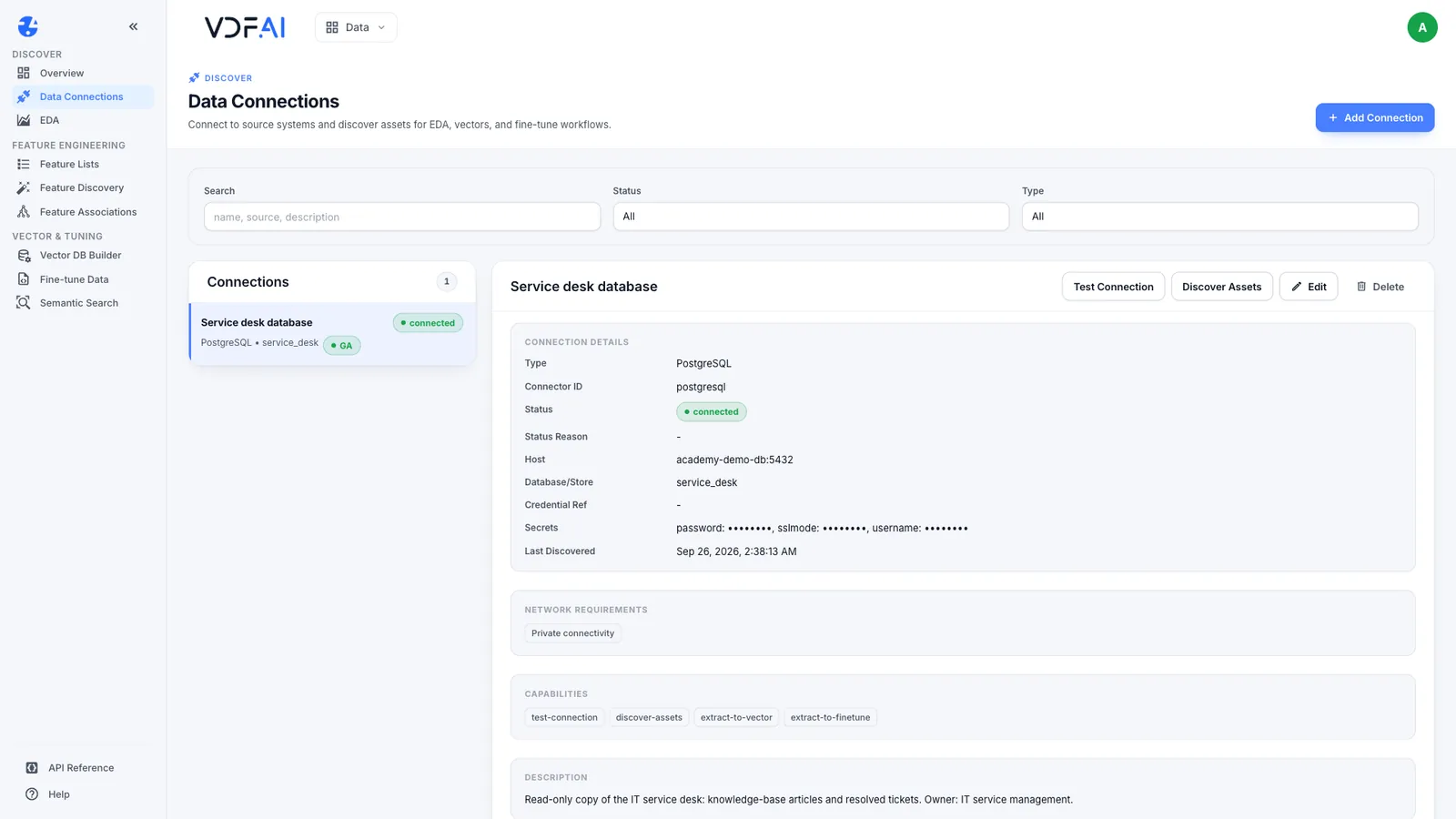
Start in Data Connections. The service desk database is registered with a read-only account. Its secrets are masked, and it needs only private connectivity.
Test it and discover assets
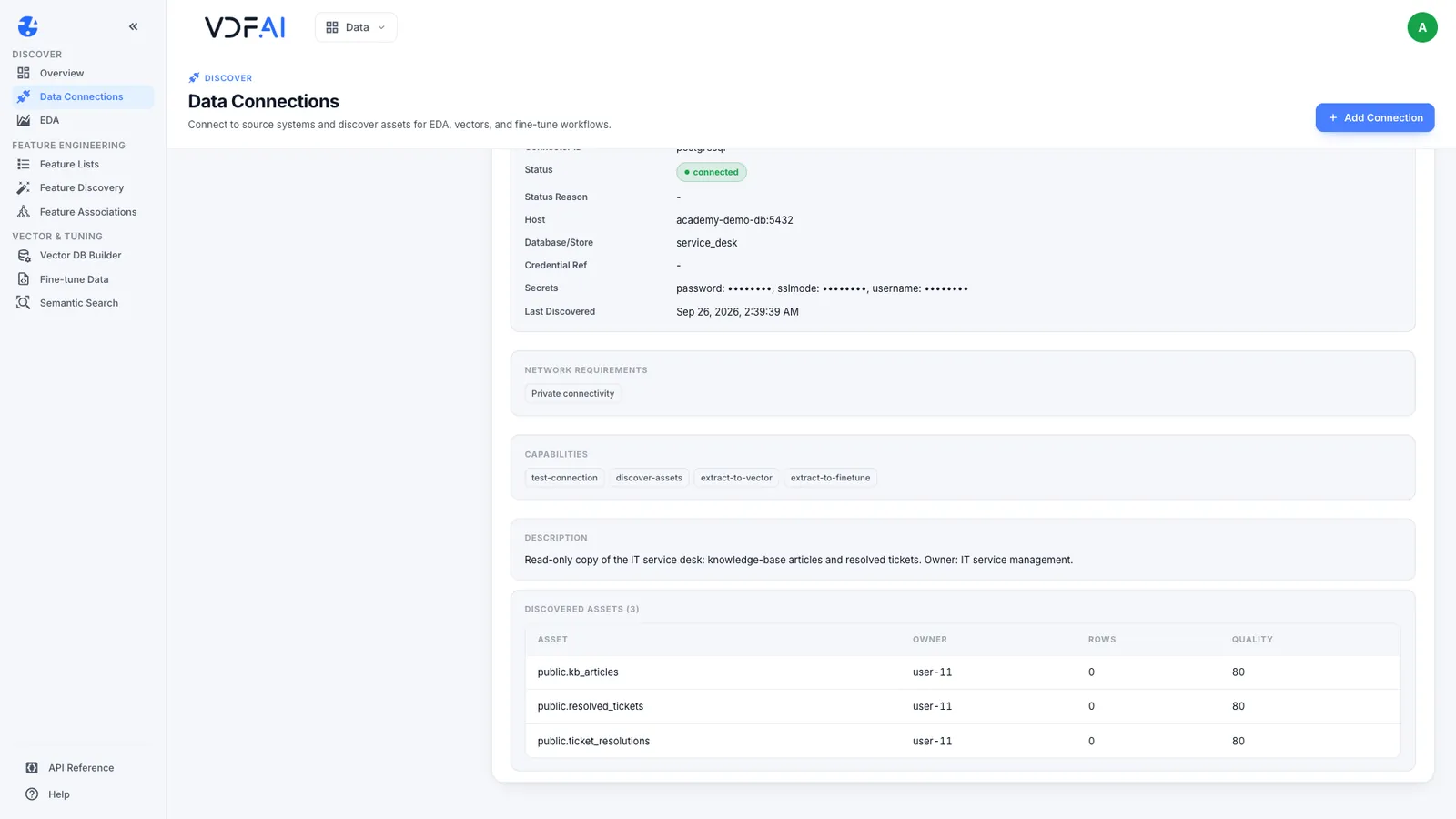
Test the connection, then discover what the source holds. Three tables, including the knowledge-base articles we want to search.
Check the data first
Before indexing anything, run a health check on the articles. No missing values and no duplicates, so every article has a body worth indexing.
Create the vector index
Now create a vector index. Choose the connection and the articles table, record the embedding model your deployment serves, and keep the default chunk size for a first build.
Build it
Build the index. Each article is split into chunks, and every chunk is embedded by a model that runs inside the network.
Check the build
The build succeeded. Thirty articles became thirty-six chunks, because the longest ones were split in two.
Search it like a user
Now search it the way a user would ask. A new phone, and no way to approve sign-in requests.
Read the ranked results
The top match is the article on resetting multi-factor authentication, with its source and a similarity score. These ranked, cited passages are what a model is given to write the answer.
Next steps
Next, retrieve from databases and tables, and test retrieval quality before users rely on it. Every lesson is free, at vdf.ai/academy.
Retrieval-augmented generation (RAG) answers questions from your own content in two halves: retrieve the passages that answer the question, then give them to a model to write the answer. The retrieval half decides whether the answer can be right at all. If the right passage is never retrieved, no model can cite it.
This lesson builds the retrieval half end to end in VDF AI Data, and builds it privately: the source stays in your database, and every embedding is computed by a model served inside your network. The source is the synthetic IT service desk used throughout the Academy, with 30 knowledge-base articles in a PostgreSQL database.
Step 1: Decide what the pipeline must answer
Before you build anything, write down ten questions real users ask and the article that answers each. Write them the way people actually type, not the way the articles are titled.
| Question | Should retrieve |
|---|---|
| I got a new phone and can’t approve sign-in requests | KB-1002, Resetting multi-factor authentication |
| The printer says offline for everyone on our floor | KB-1006, Printer shows as offline |
| What priority is a whole site outage? | KB-1021, Incident priority matrix |
This list becomes the test set in the last lesson of this path. Write down what the pipeline must not do as well: read tables it does not need, send content outside your network, or return articles a user is not allowed to see, which is the subject of the third lesson.
Step 2: Connect the source with a read-only account
Open VDF AI Data, then Data Connections, and choose Add Connection. The connector list covers Exasol, Jira Data Center, Microsoft SQL Server, MySQL, Oracle, PostgreSQL, Presto, S3-compatible storage and SAP HANA. For PostgreSQL, enter a name, the host and port, the database and a description, then the credentials: username, password and an optional SSL mode.
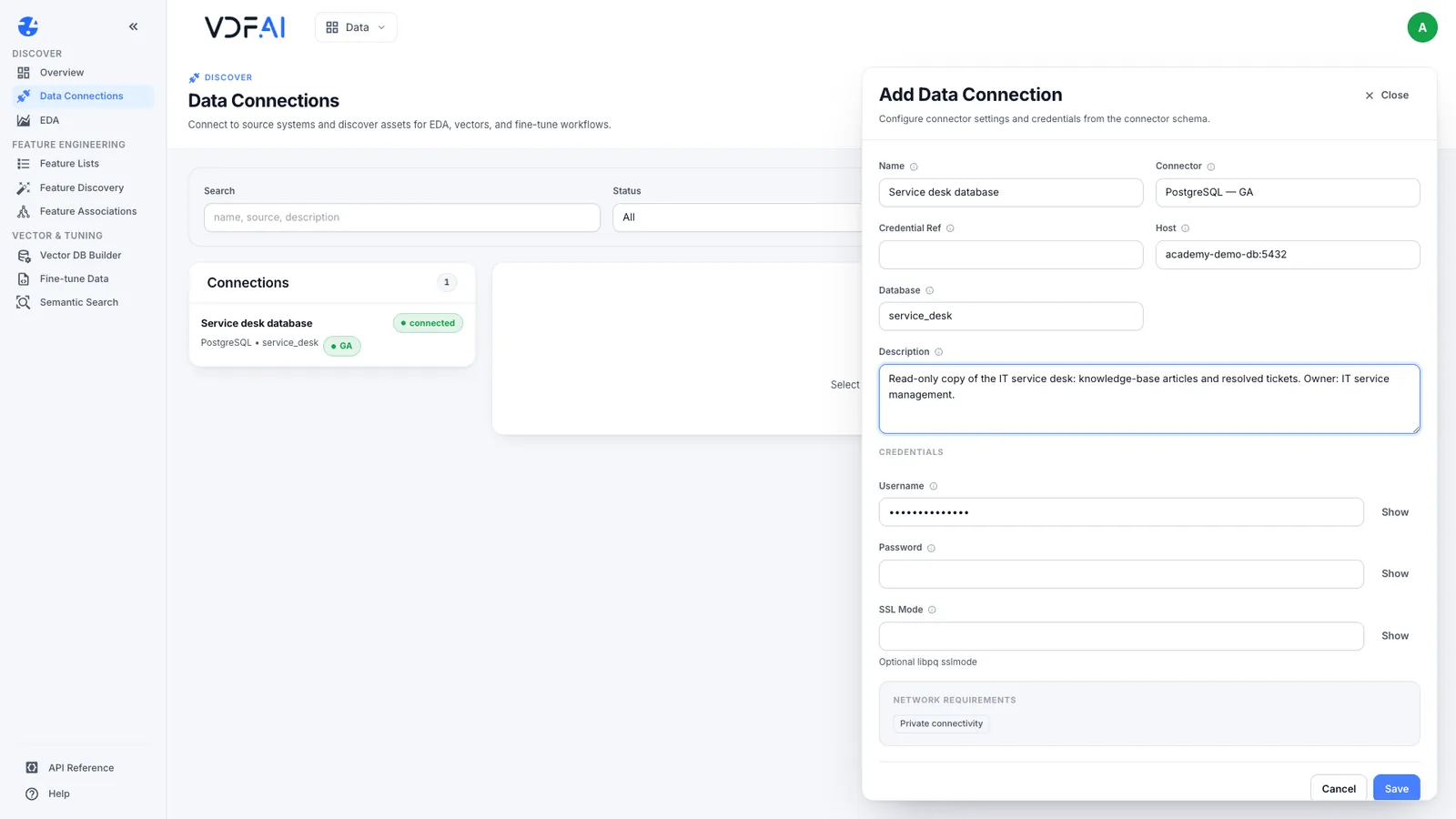
Use an account that can only read the tables you intend to index. Ours, academy_reader, can select from three tables and do nothing else. Put the owner in the description, so a reviewer knows whom to ask about the data.
Save and select the connection. The details panel shows the connector, the database and the secrets, which are always masked. Network requirements reads Private connectivity: the platform reaches the database inside your network.
Choose Test Connection, then Discover Assets. Discovery lists every table the account can read: kb_articles, resolved_tickets and ticket_resolutions. If a table you did not intend to share appears here, fix the account’s grants before going further.
Step 3: Check the data before indexing
Open EDA, choose public.kb_articles as the dataset and select Run Health Check. It profiles every column and summarises the table.
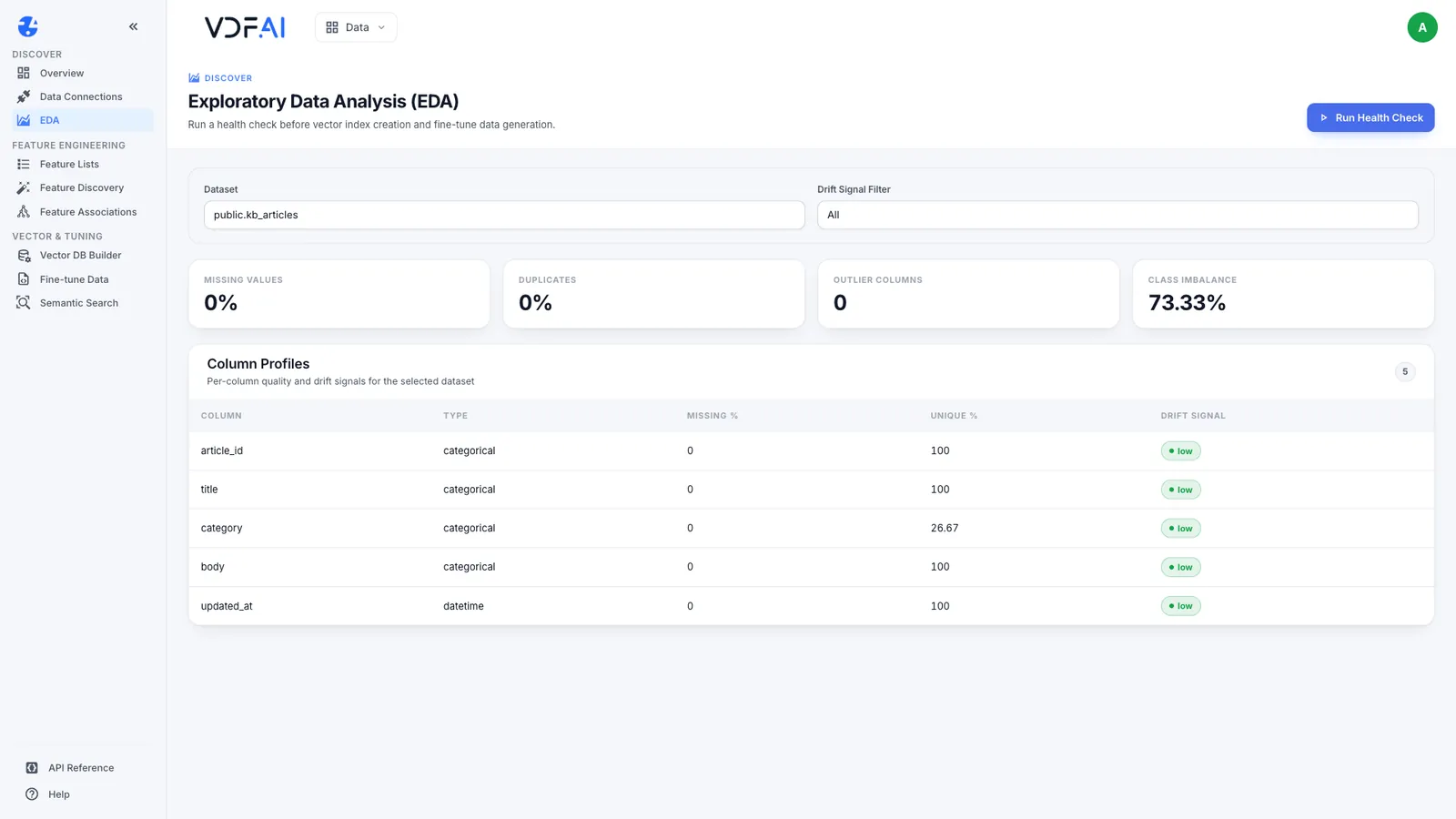
Ours came back with no missing values, no duplicates and no outlier columns, and each of the five columns (article_id, title, category, body, updated_at) is fully populated. Look for two things in your own data. An empty body indexes as noise that can still be retrieved. Duplicate articles rank twice and push other answers out of the results. Fix both in the source, not in the index.
Step 4: Create the vector index
Open Vector DB Builder and choose New Index. Give it a name, choose the connection and the asset, here public.kb_articles, and review the three settings that shape retrieval.
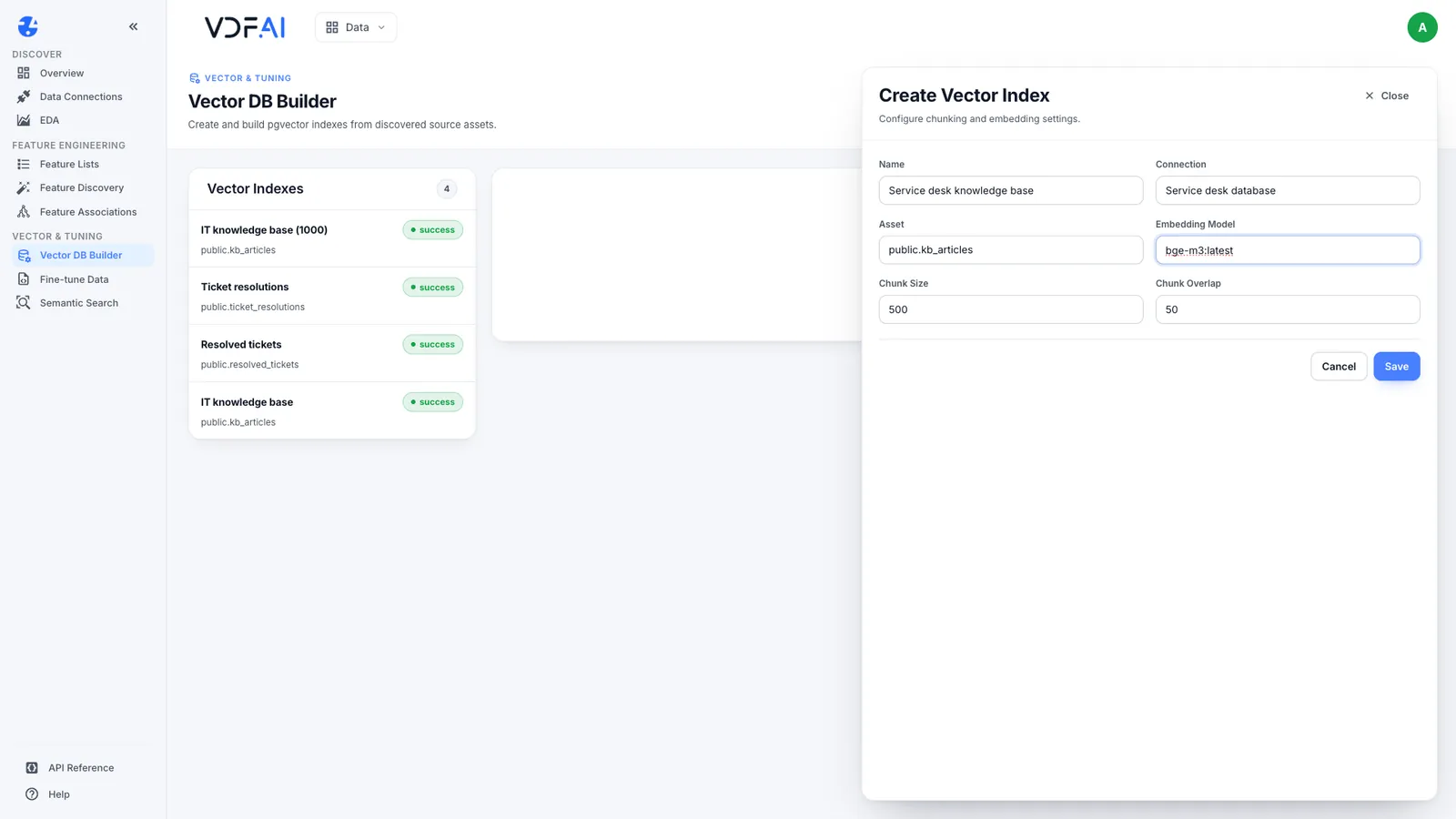
- Embedding model. The model that turns each chunk, and later each question, into a vector. Our deployment embeds with
bge-m3, an open multilingual model running on the on-premises model server, so neither the articles nor the questions leave the network. Enterbge-m3:latestso the index records the model that built it. - Chunk size. The longest piece of text, in characters, that becomes one vector. The default is 500.
- Chunk overlap. How many characters neighbouring chunks share, so a sentence cut at a boundary survives in one of them. The default is 50.
Keep the defaults for a first build. The last lesson in this path measures whether they suit your content. Choose Save.
Step 5: Build it and check the chunks
Select the new index and choose Build, then Refresh until the status reads success. The panel records the chunk size, the overlap, the embedding model, the status and the number of chunks embedded.
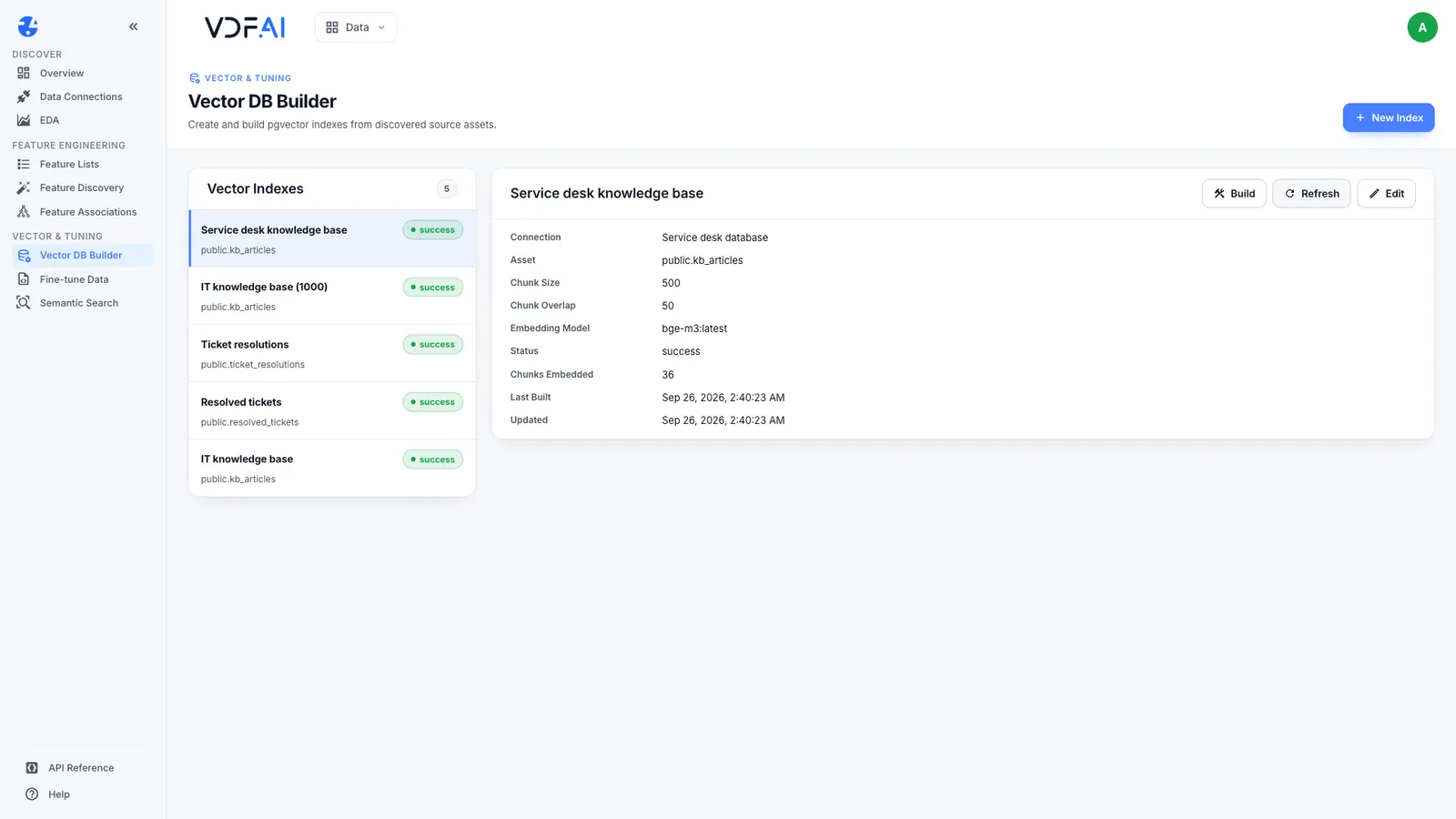
Our 30 articles became 36 chunks. Six articles are longer than 500 characters, and each was split in two. Always check the count against what you expect: far more chunks than rows means the chunk size is small for your content, and exactly one per row means nothing was split at all.
Step 6: Search it the way users ask
Open Semantic Search, choose the index, type a question the way a user would and set Top K to 3. Choose Search.
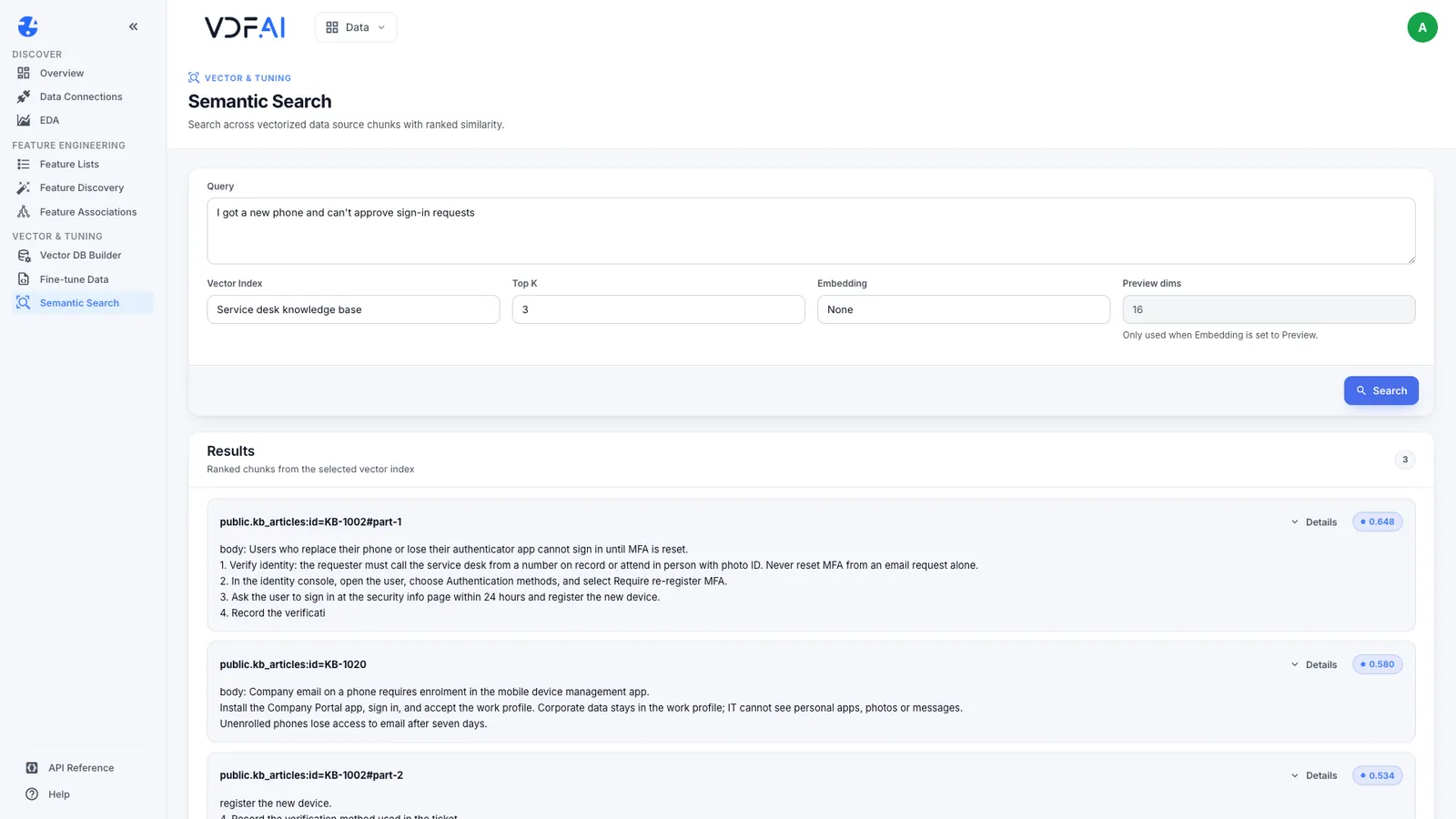
For “I got a new phone and can’t approve sign-in requests”, our index returned:
KB-1002#part-1, the first half of Resetting multi-factor authentication, at 0.648.KB-1020, Enrolling a mobile phone, at 0.580.KB-1002#part-2, the second half of the same article, at 0.534.
Read three things in every result. The source ID names the table, the row and the part, so an answer can cite exactly where it came from. The score is similarity to the question, useful for comparing results of one query rather than as a confidence level. And the split: the second half of the MFA article, which carries the rule that resets for administrators and finance staff are P2 and need a second approver, ranked third on its own. A model given only the top result would never see that rule.
In a complete RAG system, the top passages and their source IDs go to a model together with the question, and the model writes an answer that cites them. This path stays with retrieval, because an answer can only be as good as the passages it is given. Next: retrieving from databases and tables, then keeping retrieval inside each user’s permissions, then measuring retrieval quality with the test set from Step 1.
Check your understanding
Why connect with a read-only database account?
The pipeline only needs to read. A read-only account means nothing in the pipeline, or anything that uses it later, can change the source, and it is the first thing a security reviewer will ask about.
Why did 30 articles become 36 chunks?
With a chunk size of 500 characters, the six articles longer than that were each split in two. Splits matter because one answer can end up in two chunks that rank separately.
What keeps this pipeline private?
The source stays in your database, and both the articles and the questions are embedded by a model served inside the network, so neither is sent to an outside service.
Reference
Build it in VDF AI
Follow along in your own workspace. The Starter plan is free, with no credit card.
Try VDF AI freeSee it on your own data
Walk through this with a VDF AI engineer, on your infrastructure and your use case.
Book an architecture callGo deeper with an instructor
Enterprise RAG Engineering: four live half-days, free for customers and partners.
See the course