In this lesson you will learn to
- Name the five VDF AI applications and what each one is for
- Choose the workspace a chat should use, and say what it changes
- Find uploaded and generated files in the Library
- See which business apps can be connected, and what each connection reads
Before you start
- A VDF AI account, either on the free Starter plan or in your organisation's deployment
- Introduction
- Start from Home
- Know the five applications
- Choose a workspace
- Start a chat
- Find your files in the Library
- See which apps you can connect
- Next steps
Read the transcript
Introduction
In this lesson, you'll take a first tour of VDF AI: the five applications, workspaces, where your files go, and which business apps you can connect.
Start from Home
Everything starts on Home. Quick actions along the top, your workspaces, your applications, and a short Get started list, in the order the steps build on each other.
Know the five applications
The applications menu switches between Networks, Chat, Agents Hub, Data and Compliance, from anywhere in the platform. Most people start in Chat.
Choose a workspace
In Chat, the chip above the message box names the workspace. A workspace decides which agents, tools and data a chat can use, so check it whenever an answer surprises you.
Start a chat
Under the message box, you can attach a document, switch between Network mode and Manual mode, and set the plan depth. The next lessons cover each of them.
Find your files in the Library
The Library keeps every document you upload and every file VDF AI generates, so you can attach them again later, download them, or delete them.
See which apps you can connect
Integrations lists the business apps you can connect. Read each card first: some are read with your own account, and one returns only titles and links.
Next steps
Next, ask questions about your own documents, and learn the one habit that keeps answers tied to them. Every lesson is free, at vdf dot A I, slash academy.
VDF AI is one platform with five applications and a shared set of agents, tools and data behind them. This tour takes fifteen minutes and changes nothing: you open each part once, so that later lessons can say “open Agents Hub” or “choose the workspace” without explanation.
Our screenshots come from a demo account that has already completed the other Academy paths, so you will see a team workspace and some earlier chats. A new account shows the same layout with fewer items.
Step 1: Start from Home
Sign in, and VDF AI opens on Home. It gathers everything in one place: quick actions along the top, your workspaces, your applications and a short Get started list.
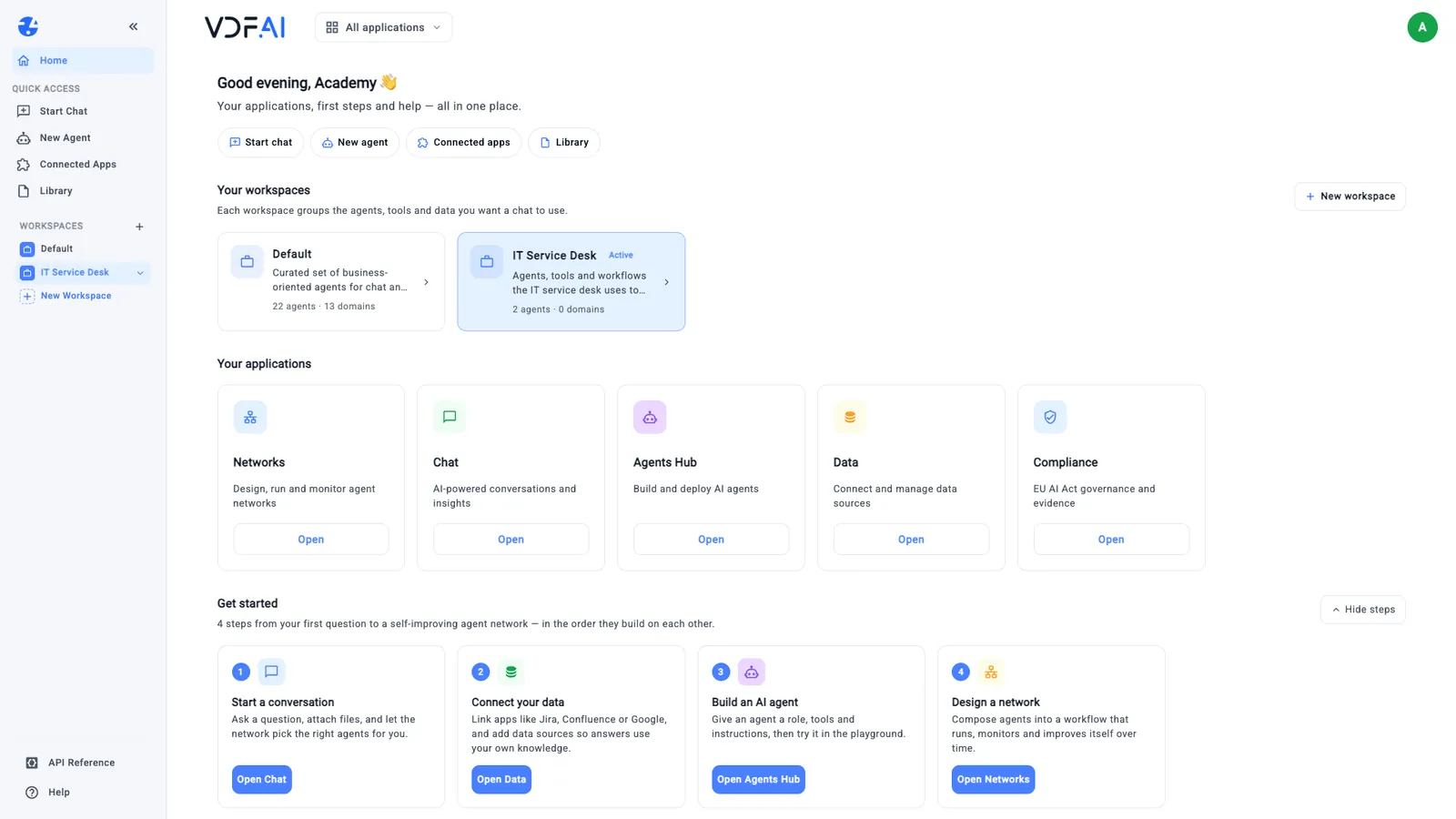
The four quick actions are Start chat, New agent, Connected apps and Library. The same shortcuts sit in the sidebar under Quick access, and API Reference and Help sit at the bottom of the sidebar on every page.
Get started lists four steps in the order they build on each other: start a conversation, connect your data, build an AI agent and design a network. The Academy paths follow the same order, so you can use that list as your map.
Step 2: Know the five applications
The All applications menu at the top left switches between applications from anywhere in the platform. Each application has one job:
| Application | What it is for |
|---|---|
| Chat | Asking questions, working with documents and running agents in conversation |
| Agents Hub | Building, testing and sharing AI agents, their tools and skills |
| Networks | Designing and running workflows in which several agents, tools and people work in order |
| Data | Connecting databases, checking data quality and building searchable indexes |
| Compliance | Keeping an AI system register, risks and evidence for the EU AI Act |
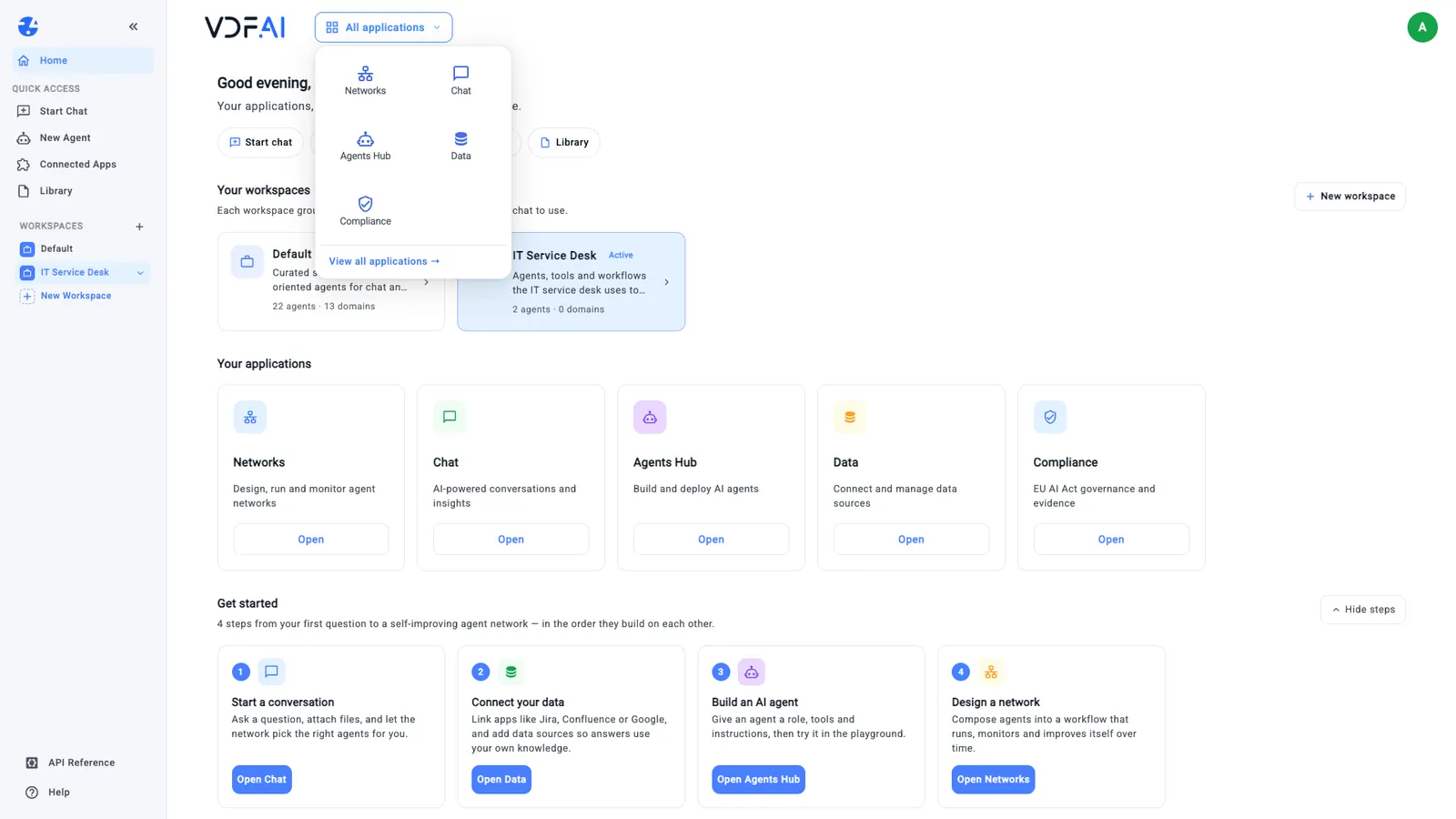
Most people start in Chat and stay there for daily work. You move to Agents Hub when the same kind of request keeps coming back and deserves its own agent, and to Networks when a task has several steps that should always run the same way.
Step 3: Choose a workspace
A workspace groups the agents, tools and data that a chat may use. Every account has a Default workspace; ours offers 22 business agents across 13 domains. Teams can add their own: the IT Service Desk workspace in our screenshots holds exactly two agents, built and approved in the agents path.
Open Chat and look at the chip above the message box. It names the current workspace. Choose it to open the workspace or switch to another one.
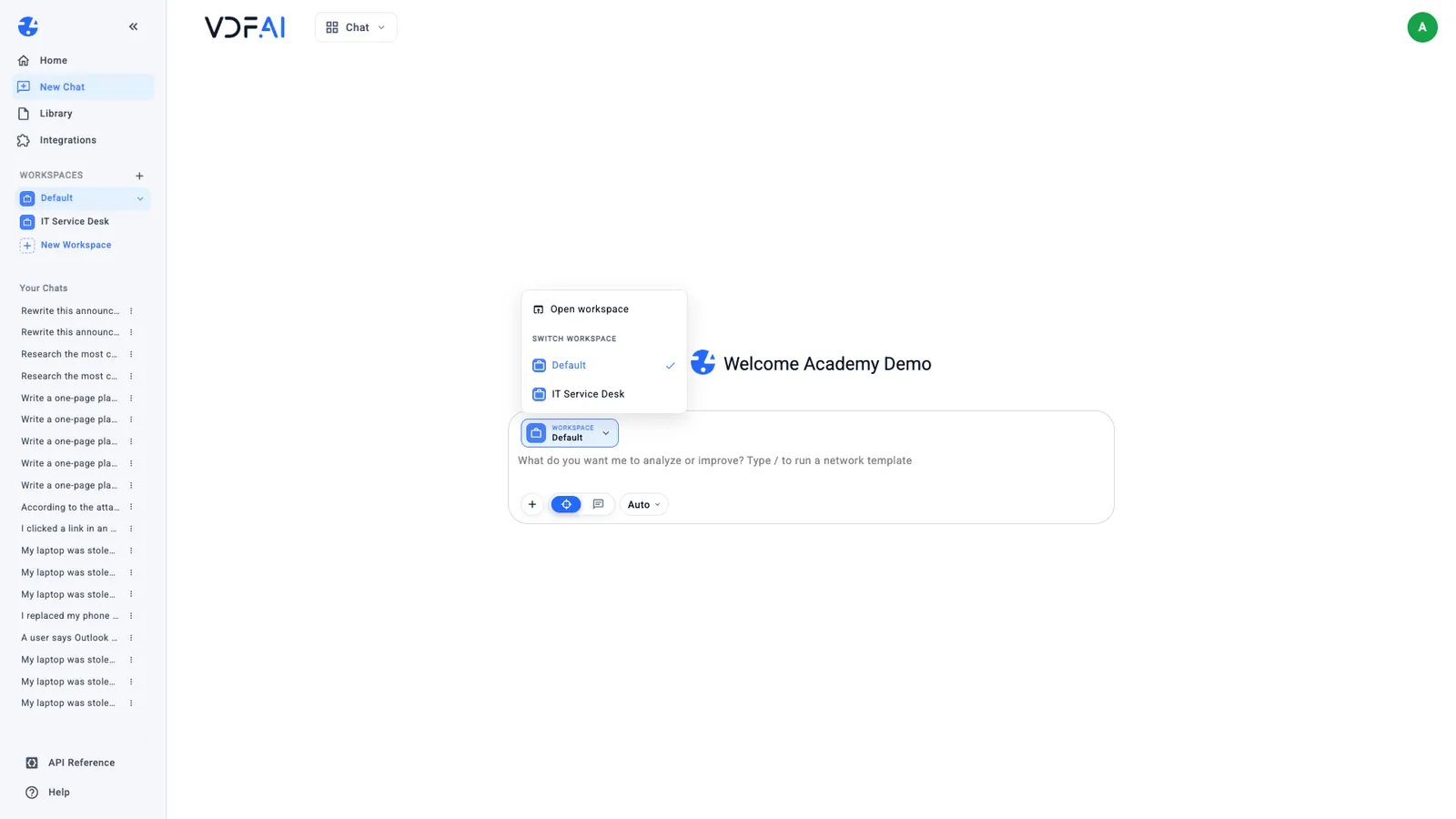
The choice matters more than it looks. The same question can get a different answer in a different workspace, because each one decides which agents can take part. When an answer surprises you, check the workspace first.
Step 4: Start a chat
Choose New Chat in the sidebar. The message box has four controls under it:
- + attaches a document, either a new upload or one from My Documents.
- The two mode buttons switch between Network mode, where VDF AI plans the work and picks the agents, and Manual mode, where you choose the agent yourself.
- Auto is the plan depth. It sets how large a plan may get in Network mode.
Type a first question and send it. Chats are listed under Your Chats in the sidebar, newest first, so you can return to any of them later. The next two lessons in this path cover documents, modes and plan depth properly; for now it is enough to know where they are.
Step 5: Find your files in the Library
Choose Library in the sidebar. It holds every document you uploaded, every file VDF AI generated for you and any meeting transcripts synced from Zoom, each with its type, its date and buttons to download or delete it.
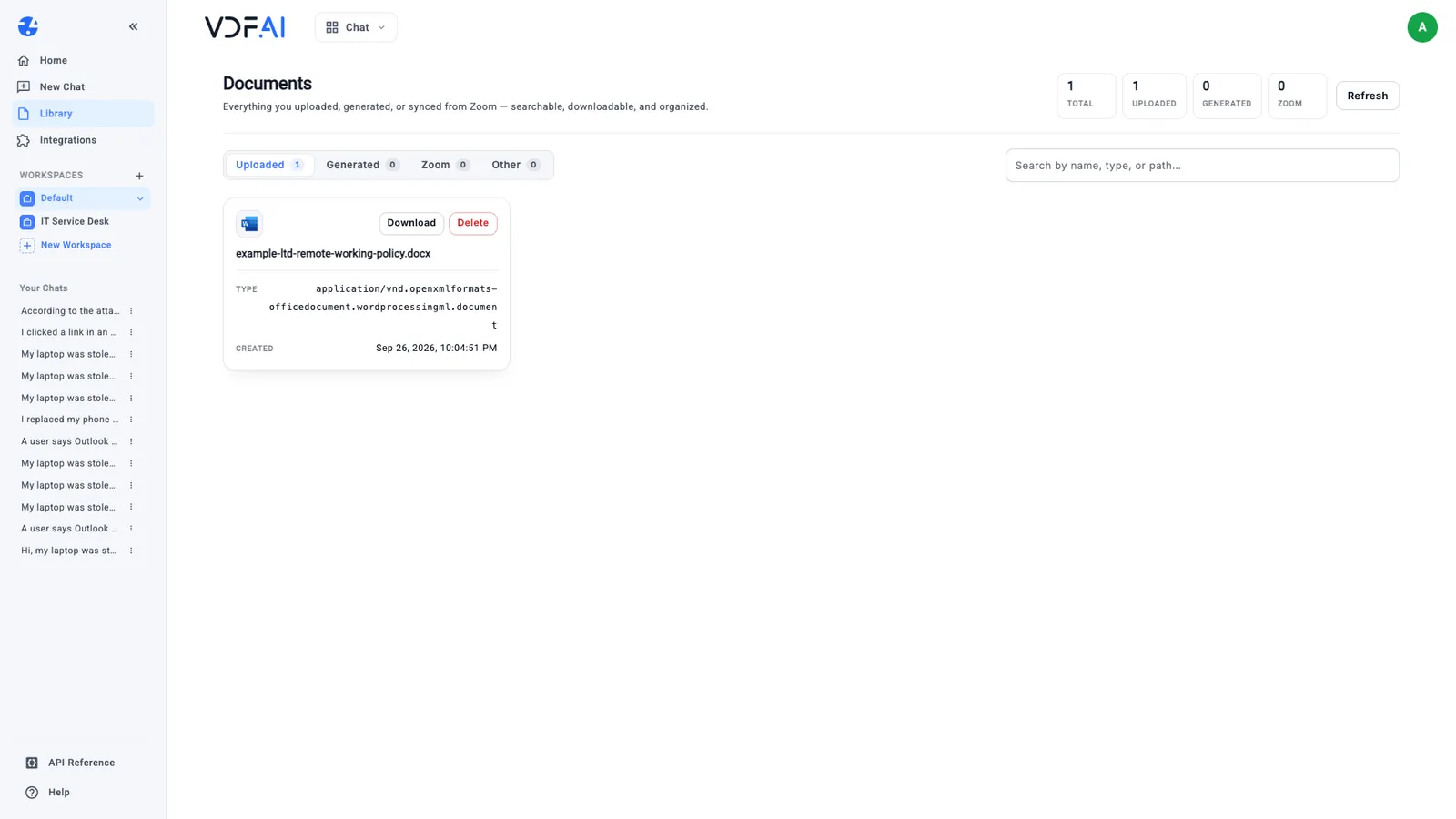
Uploading a file to a chat also stores it here. That is useful, because you can attach the same document to a later question through My Documents instead of uploading it again. It also means the Library is the place to delete a file you no longer want the platform to keep.
Step 6: See which apps you can connect
Choose Integrations in the sidebar. It lists the business apps VDF AI can connect to, grouped by category, each with its status. Ours showed eleven, all disconnected:
- Project management: Jira
- Documentation: Confluence, OneDrive & SharePoint, and SharePoint through a service account
- DevOps: GitHub Enterprise Server, Bitbucket Data Center, and Azure DevOps Server or TFS
- Communication: email over IMAP and SMTP, Outlook Mail and Microsoft Teams
- Enterprise: Dynamics 365 Finance & Operations
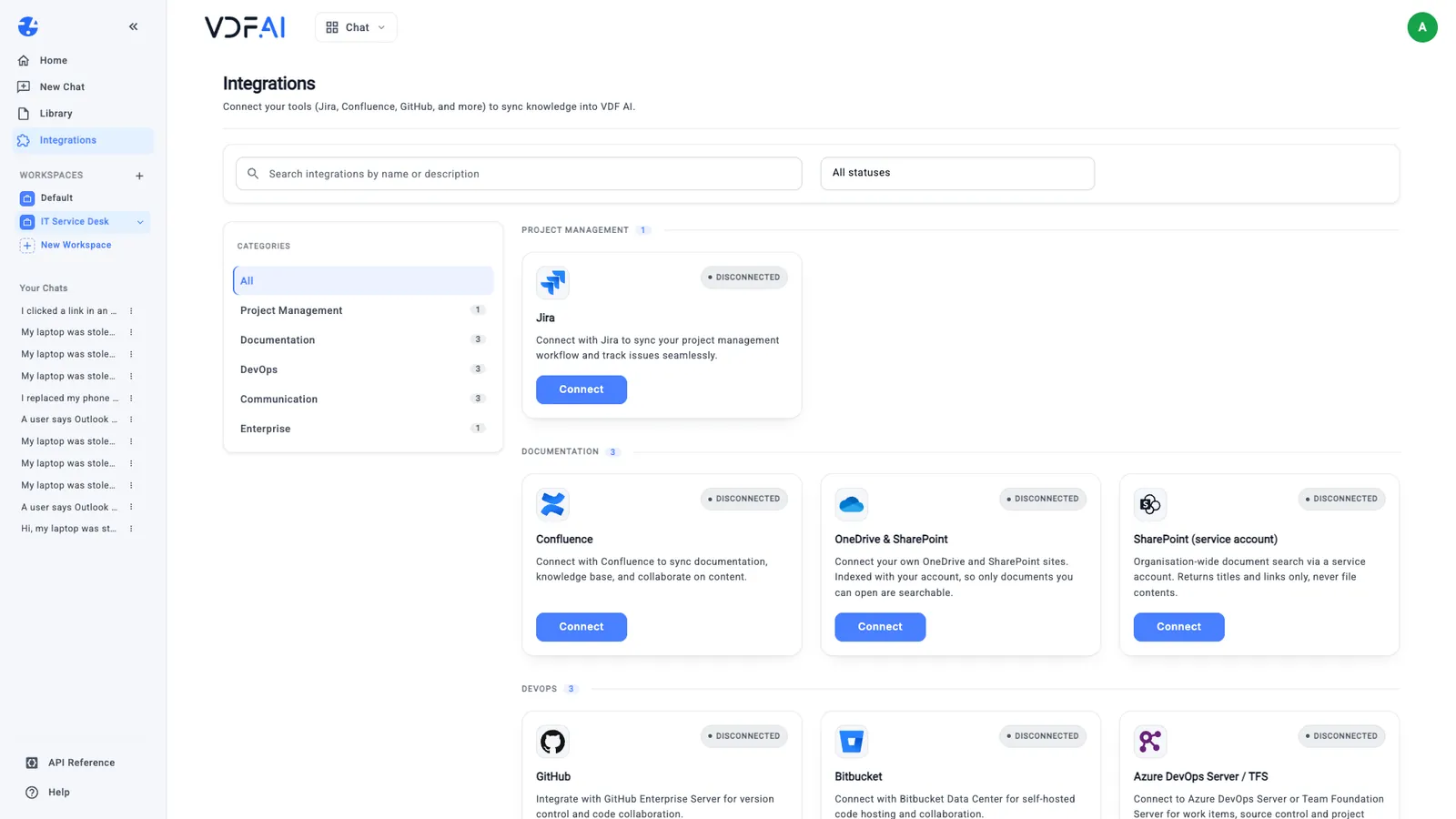
Read each card before you connect anything, because they differ in whose access they use. OneDrive & SharePoint and Outlook Mail are read with your own account, so agents see only what you can see. SharePoint (service account) searches across the organisation through one account and returns titles and links only, never file contents. Some connections are registered by an administrator before users can connect them.
You now know where everything lives. The next lesson uses Chat and the Library to answer questions from a document, and shows the one habit that keeps those answers tied to the document.
Check your understanding
What does choosing a workspace change about a chat?
Which agents, tools and data the chat can use. The Default workspace offers a broad set of business agents; a team workspace offers only what its owner added.
Where do you find a document you uploaded to a chat last week?
In the Library, under Uploaded. From a new chat you can also attach it again through the attachment button and My Documents, without uploading it a second time.
Which connection returns titles and links only, never file contents?
SharePoint (service account). It searches across the organisation through one service account, so it shows what exists without reading files on anyone's behalf.
Reference
Build it in VDF AI
Follow along in your own workspace. The Starter plan is free, with no credit card.
Try VDF AI freeSee it on your own data
Walk through this with a VDF AI engineer, on your infrastructure and your use case.
Book a demoGo deeper with an instructor
Advanced Agent Building: Skills, Tools and MCP: four live half-days, free for customers and partners.
See the course