In this lesson you will learn to
- Decide what you need to know about every run of a workflow
- Watch a run live and read each step's model, duration and tokens
- Trace a failed run to the step and the reason that stopped it
- Combine the controls from this path into a routine for production
Before you start
- The previous lessons in this path, or any saved workflow with runs
A workflow in production runs when nobody is watching. Monitoring is how you find out afterwards what it did: which steps ran, on which models, for how long, and why a run stopped when it did. Control is deciding in advance how a run may fail, so that it fails safely.
This lesson reads two runs from earlier in this path in Network Monitoring: the pinned service desk workflow, which succeeded, and the approval workflow after an engineer rejected the reply.
Step 1: Decide what to watch
For each workflow, decide which questions a run must answer. For the service desk workflows:
- Did the run complete, and if not, which step stopped it and why?
- Which model did each step use, and how long did it take?
- Who approved or rejected, and with what comment?
- How much did the run use, in tokens and energy?
Every answer below comes from what VDF AI records automatically. Your job is to know where to look and to read it regularly.
Step 2: Watch a run live
Open Network Monitoring under Monitor. It shows the latest run of the selected network: its ID, status and prompt, a Network Flow diagram, Performance Metrics and Real-time Logs.
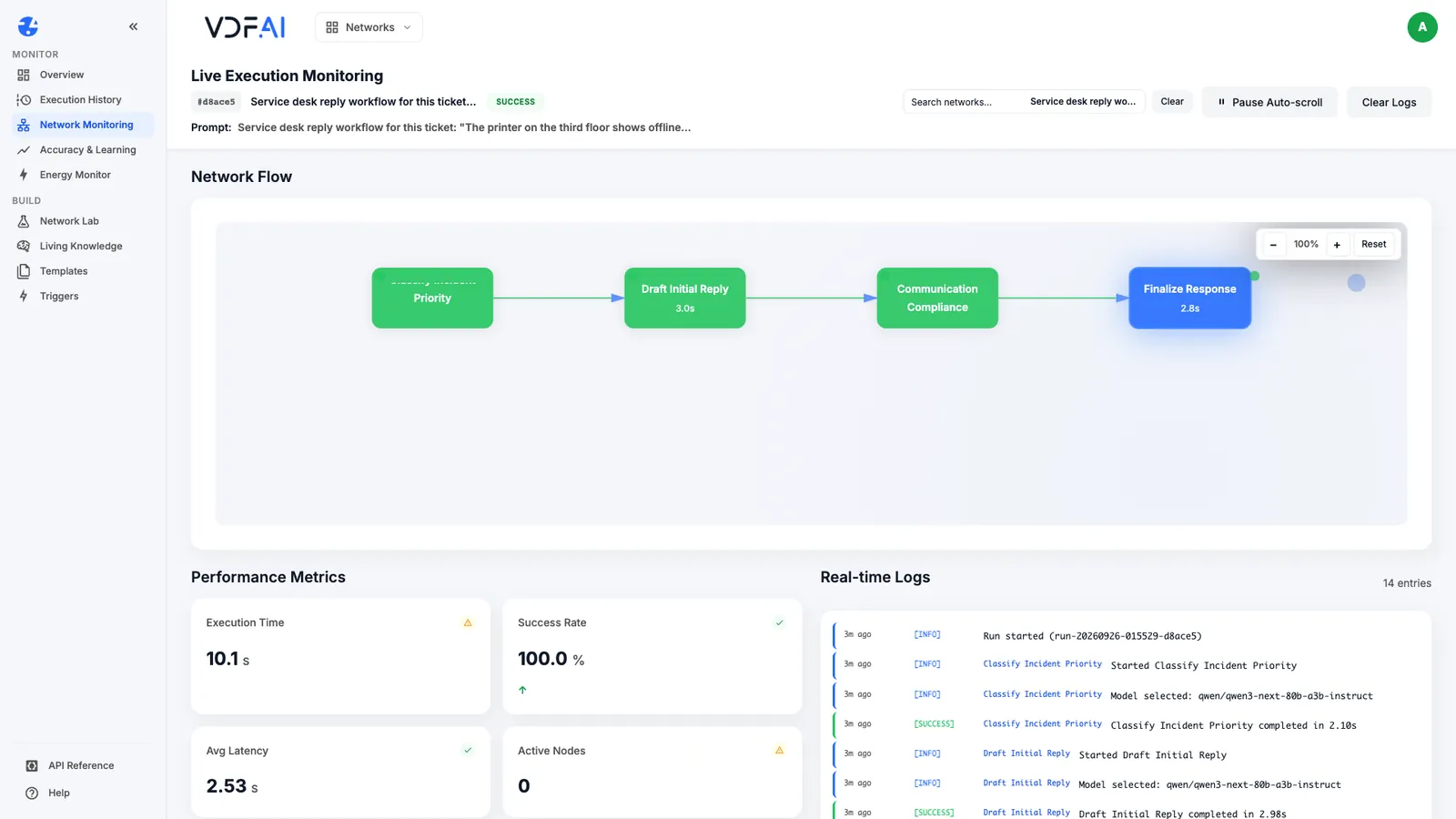
For our pinned run, the flow showed all four steps completed, with the time each took. The metrics showed 10.1 seconds in total and an average step latency of 2.53 seconds. The logs record each step starting, the model selected for it and its completion time.
Step 3: Read each step’s record
Scroll to Execution Steps. Each step is listed with its status, start, duration, model and token count, split into input and output tokens.
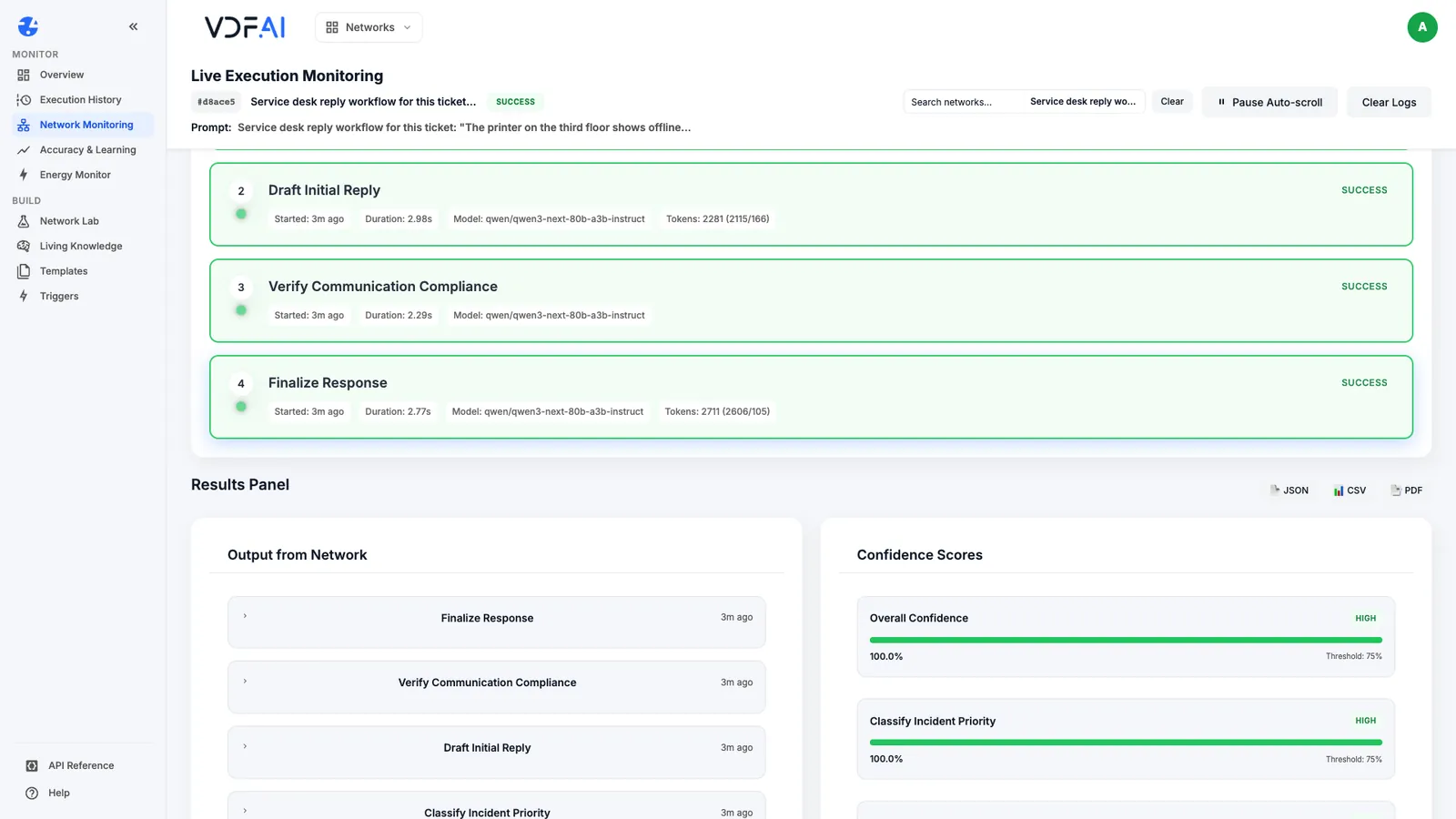
Below it, the Results Panel holds each step’s output and can be exported as JSON, CSV or PDF. Confidence Scores rate each step’s output against a threshold of 75%, and Explanations summarise each step: the model selected, the routing reason, such as pinned_by_config, and the key factors of duration and tokens.
Step 4: Diagnose a failed run
Now the run an engineer rejected. The header shows FAILED, and the flow shows where it stopped: the first two steps are green, the approval step is highlighted, and the final step is grey because it never ran.
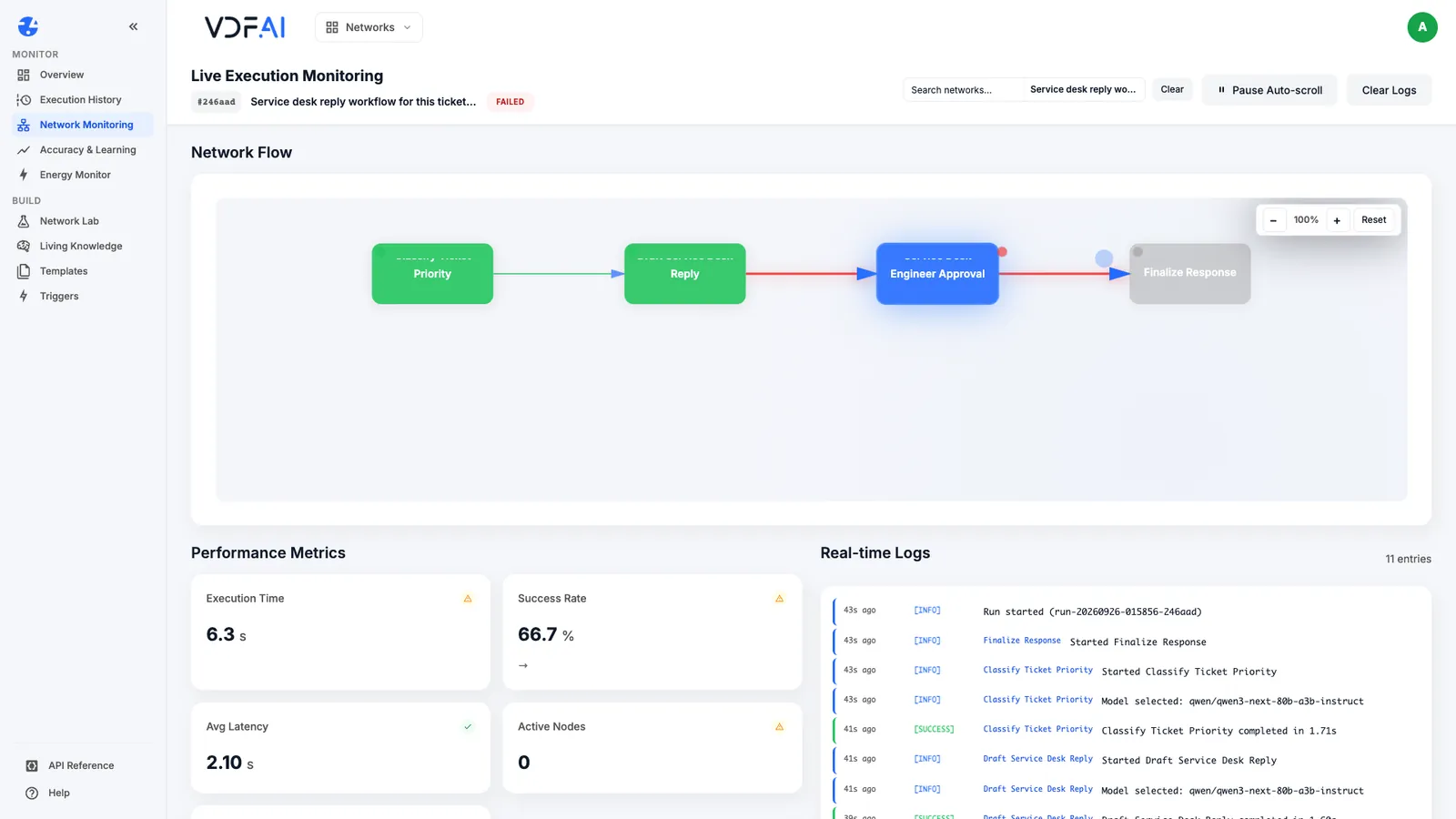
The logs give the reason in plain words. The approval step logged an error that approval ‘human_approval_gate’ was not granted, and the run failed with the same message. Execution Steps agrees: the approval step shows ERROR and the final step PENDING, and Completed Steps reads 2/4.
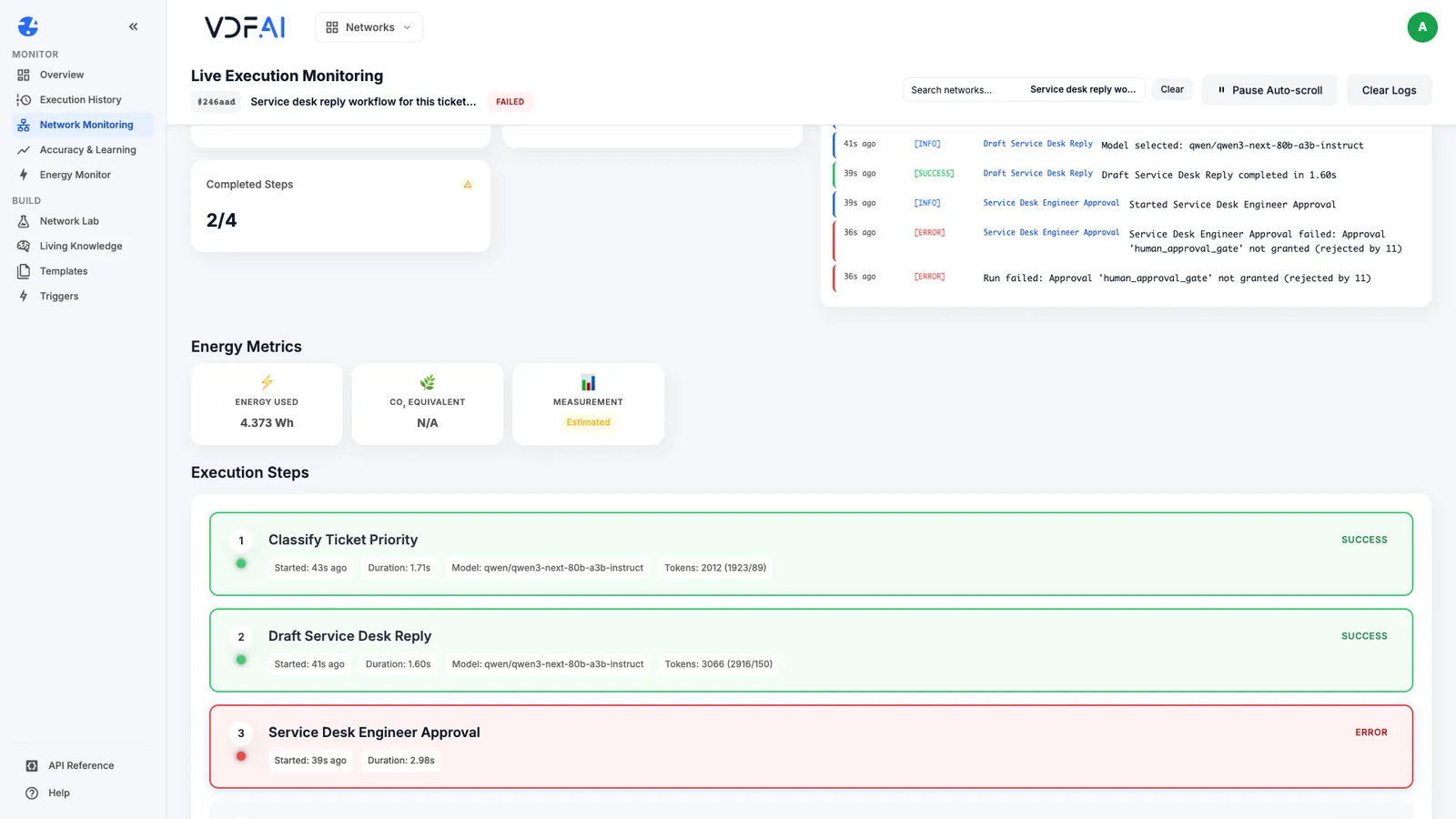
Notice what did not signal the failure. The confidence scores for the steps that ran were 100%, and the success rate read 66.7%. Both describe the steps that produced output, not the run. Read the run’s status and the step statuses first, then the logs, and treat scores as detail.
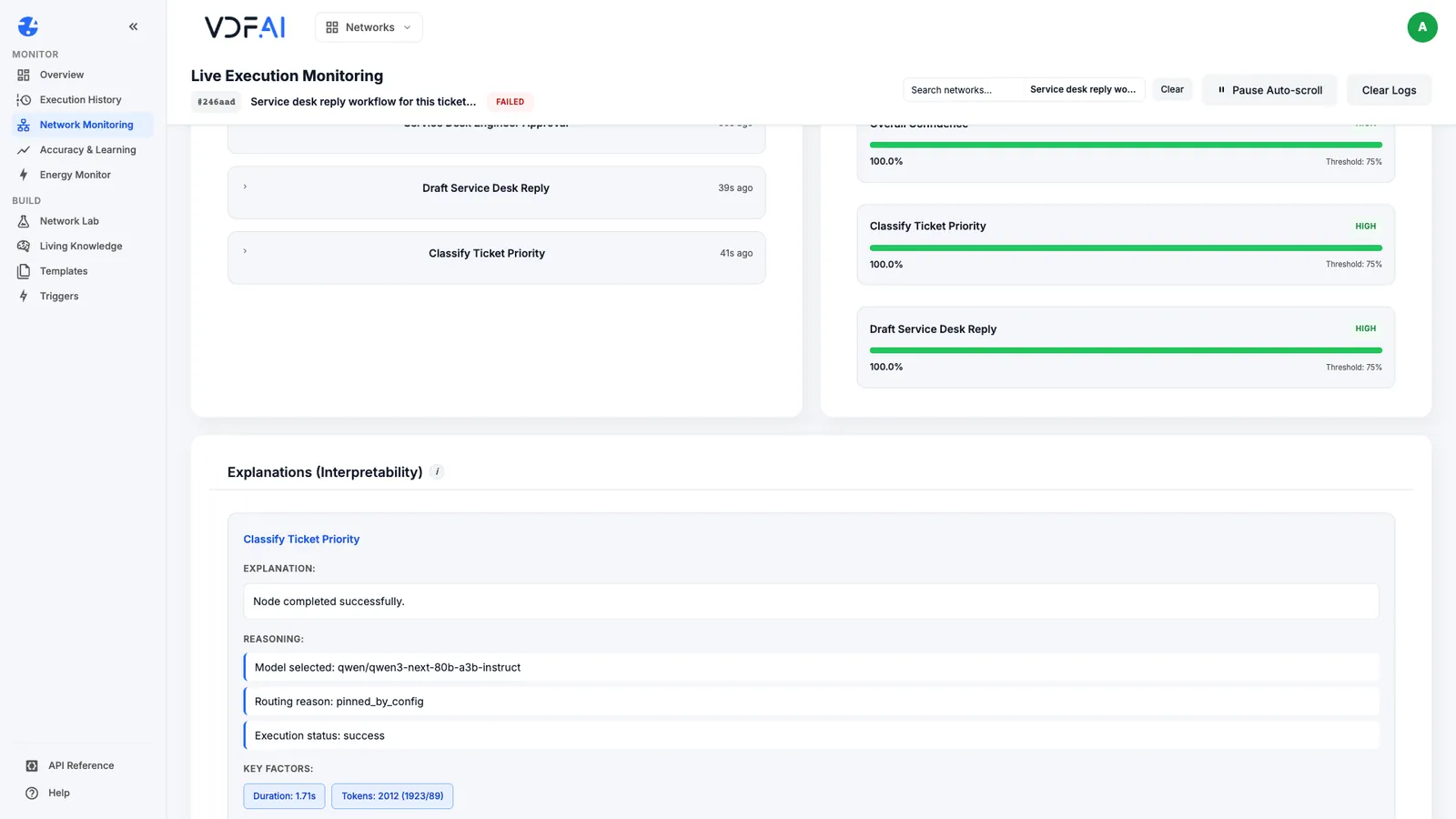
The approval step’s explanation records the routing reason awaiting_approval and the error, so the reason for the stop is kept with the run, not only in someone’s memory.
Step 5: Keep the evidence
Each run leaves more than its logs. The rejected run recorded an estimated 4.373 Wh of energy, and Run Intelligence gave it a proof-of-execution score, a ledger entry and a list of similar earlier runs, ranked by similarity.
Decide which runs you keep and how. For a workflow with approvals, export the results of every rejected or unusual run with the reviewer’s comment, and keep them with the workflow’s version number from the save. When someone asks why a reply was never sent, the answer is then a file, not a search.
Step 6: Put the controls together
Monitoring tells you what happened. Controls decide what is allowed to happen. Across this path you have seen each of them in the product:
- Verification steps check a draft against written rules. Set
on_failtohaltwhere a failed check must stop the run. - Human Approval steps ask a person only when a rule matches, with a time limit and an
on_rejectsetting. Check the generated rules every time. - Pinned models keep steps that others depend on consistent, and make runs reproducible.
- Policies limit what automatic routing may choose, and versions record which design produced which run.
Put them into a routine: run the test cases after every change, read one run a day end to end, and review every failed or rejected run within a working day. A workflow that is watched and controlled this way can earn the trust to run without anyone watching.
Check your understanding
The failed run showed confidence scores of 100%. Why did that not mean the run was fine?
Confidence describes the steps that produced output. It said nothing about the approval that was rejected, so the run's status and each step's status come first.
Where did the monitor show the reason the run stopped?
In the real-time logs, as an error saying the approval was not granted, in the step list, where the approval showed ERROR and the final step PENDING, and in the step's explanation.
Which controls from this path decide how a workflow may fail?
Verification steps with on_fail set to halt, approval steps with their rules, time limit and on_reject setting, pinned models for steps others depend on, and the policies that limit automatic routing.
Reference
Build it in VDF AI
Follow along in your own workspace. The Starter plan is free, with no credit card.
Try VDF AI freeSee it on your own data
Walk through this with a VDF AI engineer, on your infrastructure and your use case.
Book a demoGo deeper with an instructor
Production Agentic Systems: Multi-Agent, RAG and Governance: four live half-days, free for customers and partners.
See the course