In this lesson you will learn to
- Decide which workflow steps need a person's approval
- Read and change the rules on a Human Approval step
- Make an approval depend on what an earlier step produced
- Approve or reject a run and read what each outcome does
Before you start
- The previous lesson in this path
- A workflow whose output reaches people outside the team
- Introduction
- Describe the workflow
- Open the approval step
- Ask only for P1 and P2
- Run a P1 ticket
- Review the request
- Approve with a comment
- Read the approved reply
- See the approval in the run
- Next steps
Read the transcript
Introduction
In this lesson, you'll add a human approval to an agentic workflow, and make it ask only when it matters: for priority one and two tickets.
Describe the workflow
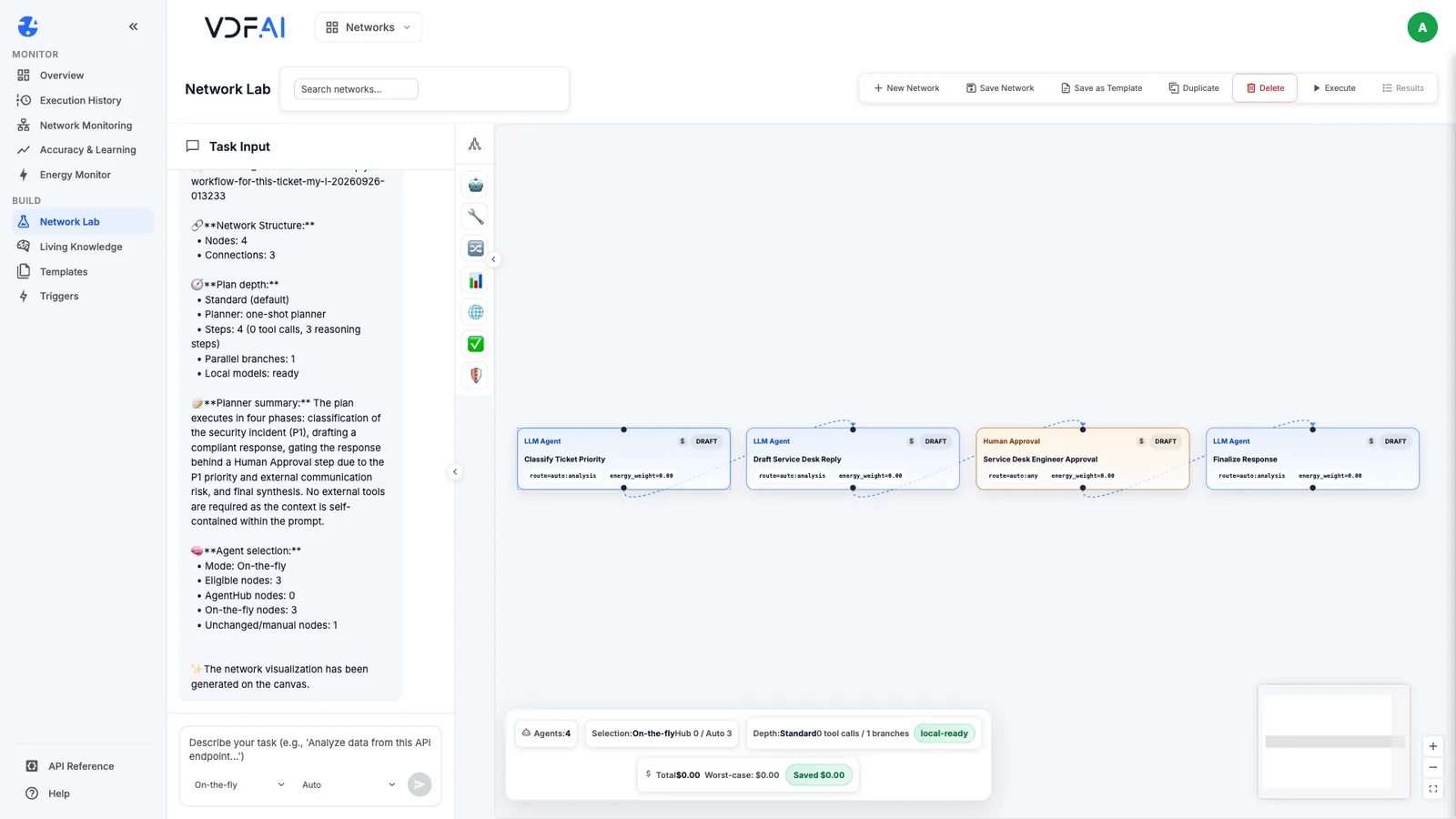
Describe the workflow as before, with one extra step: a human approval, so an engineer approves the reply when the priority is P1 or P2. Ask the classifier to start its output with a fixed priority line.
Open the approval step
Open the approval step. The generated gate uses the always rule, so it would ask on every run, whatever the priority.
Ask only for P1 and P2
Replace it with a regex rule on the classifier's output, which matches only when the priority line reads P1 or P2. A rejection halts the run, and a request nobody answers is rejected after fifteen minutes.
Run a P1 ticket
Run it on a stolen-laptop ticket.
Review the request
The run stops at the gate and asks. The card shows which rule matched, and the priority line that triggered it.
Approve with a comment
Add a comment for the record, and approve.
Read the approved reply
The run completes. The final reply is written only after the engineer's decision.
See the approval in the run
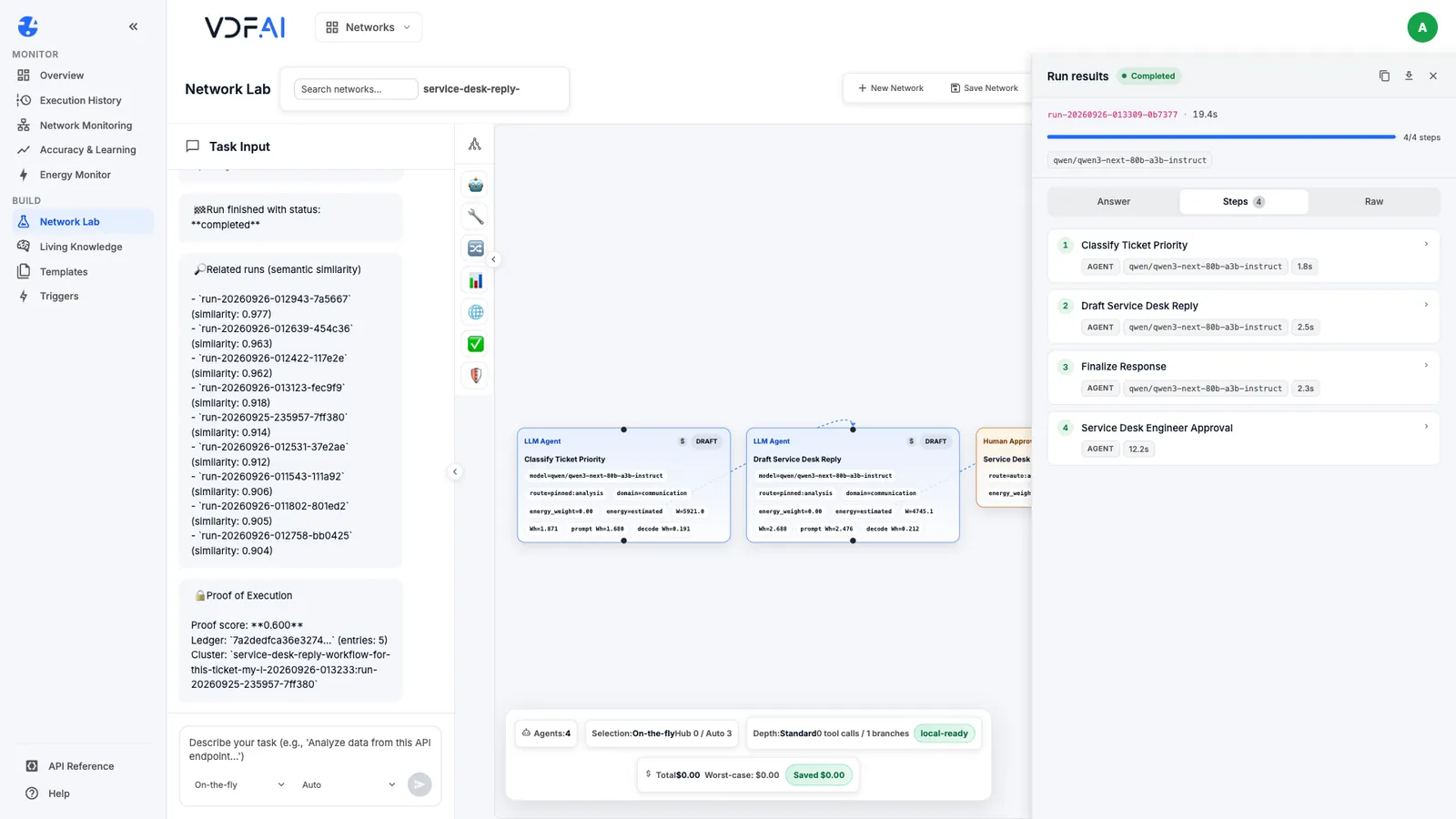
The Steps tab records the approval as a step of its own, alongside the agents that did the work.
Next steps
Next, route each step to the right model, and monitor your workflows once they run. Every lesson is free, at vdf.ai/academy.
Some steps in a workflow should not happen until a person has looked. Human-in-the-loop approval makes that explicit: the workflow runs until it reaches an approval step, waits for a decision, and carries on only if the answer is yes. Done well, it puts people exactly where their judgement matters and nowhere else.
This lesson adds an approval step to the service desk workflow from the previous lesson. The reply to a P1 or P2 ticket, such as a stolen laptop with finance data on it, waits for an engineer. A P3 or P4 reply goes straight through.
Step 1: Decide what needs approval
Ask one question of each step: what happens if it is wrong and nobody notices? A reply to a stolen-laptop report can tell someone to do the wrong thing with sensitive data, so it deserves a second pair of eyes. A reply about an offline printer does not.
Resist approving everything. A reviewer asked about every low-risk reply soon approves without reading, and then the approval protects nothing. Write the condition down, in words a rule can check: approve replies to P1 and P2 tickets.
Step 2: Add the approval step
Describe the workflow in Network Lab as in the previous lesson, with the approval as a step of its own. Two details make it work reliably.
Service desk reply workflow for this ticket: "My laptop was stolen from my
car last night. It has the Q3 finance forecast on it." Step 1: classify the
ticket and set a priority using this matrix: P1 for security incidents,
including lost or stolen devices, or a whole site down; P2 when a team or a
key person cannot work; P3 when one person or one device is affected or a
workaround exists; P4 for requests. Start the output with one line such as
"PRIORITY: P3". Step 2: draft a reply to the requester; never invent contact
details, promise fix times or ask for passwords. Step 3: add a Human Approval
step so a service desk engineer approves the reply when the priority is P1
or P2. Step 4: finalise the reply.
First, the classifier is told to start its output with a fixed line, PRIORITY: P1 to PRIORITY: P4, which gives the approval rule something reliable to match. Second, the approval is named as “a Human Approval step”. In our runs, descriptions that only said an engineer should approve sometimes produced no approval step at all; naming the step produced one every time we tried it.
Step 3: Check the rules it was given
Open the approval step and choose Edit. The Human Approval section explains how it behaves: it asks a person only when one of its rules matches the output of the steps it watches, and otherwise the run continues and nobody is asked.
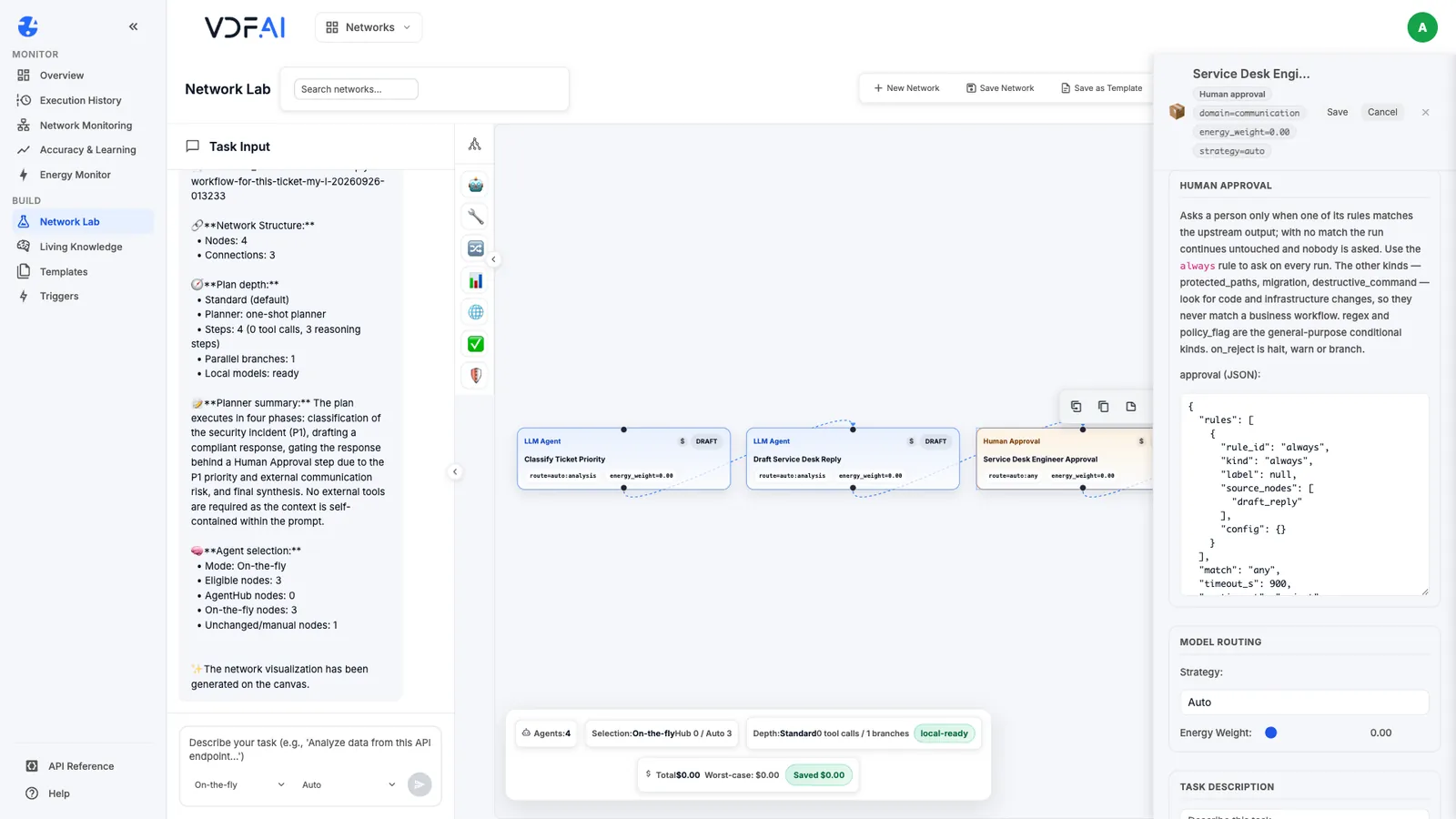
Always read the generated rules, because they may not match what you asked for. Our generated steps came with one of two kinds of rule set:
- The
alwaysrule. It asks on every run, ignoring the P1 or P2 condition in the description. protected_paths,migrationanddestructive_command. The editor’s own help says these look for code and infrastructure changes, so they never match a business workflow. In one of our runs with these rules, a P1 reply went out with no approval, promising to contact the requester “within the hour”.
Neither does what the workflow needs. The general-purpose conditional kinds are regex and policy_flag.
Step 4: Make it ask only for P1 and P2
Replace the approval JSON with a regex rule that watches the classifier:
{
  "rules": [
    {
      "rule_id": "high_priority",
      "kind": "regex",
      "label": "P1 or P2 ticket",
      "source_nodes": ["classify_ticket"],
      "config": { "pattern": "PRIORITY:\\s*P[12]\\b" }
    }
  ],
  "match": "any",
  "timeout_s": 900,
  "on_timeout": "reject",
  "on_reject": "halt",
  "approvers": { "allow_run_owner": true, "superadmin_only": false },
  "message": "Check the reply for this P1 or P2 ticket before it is sent."
}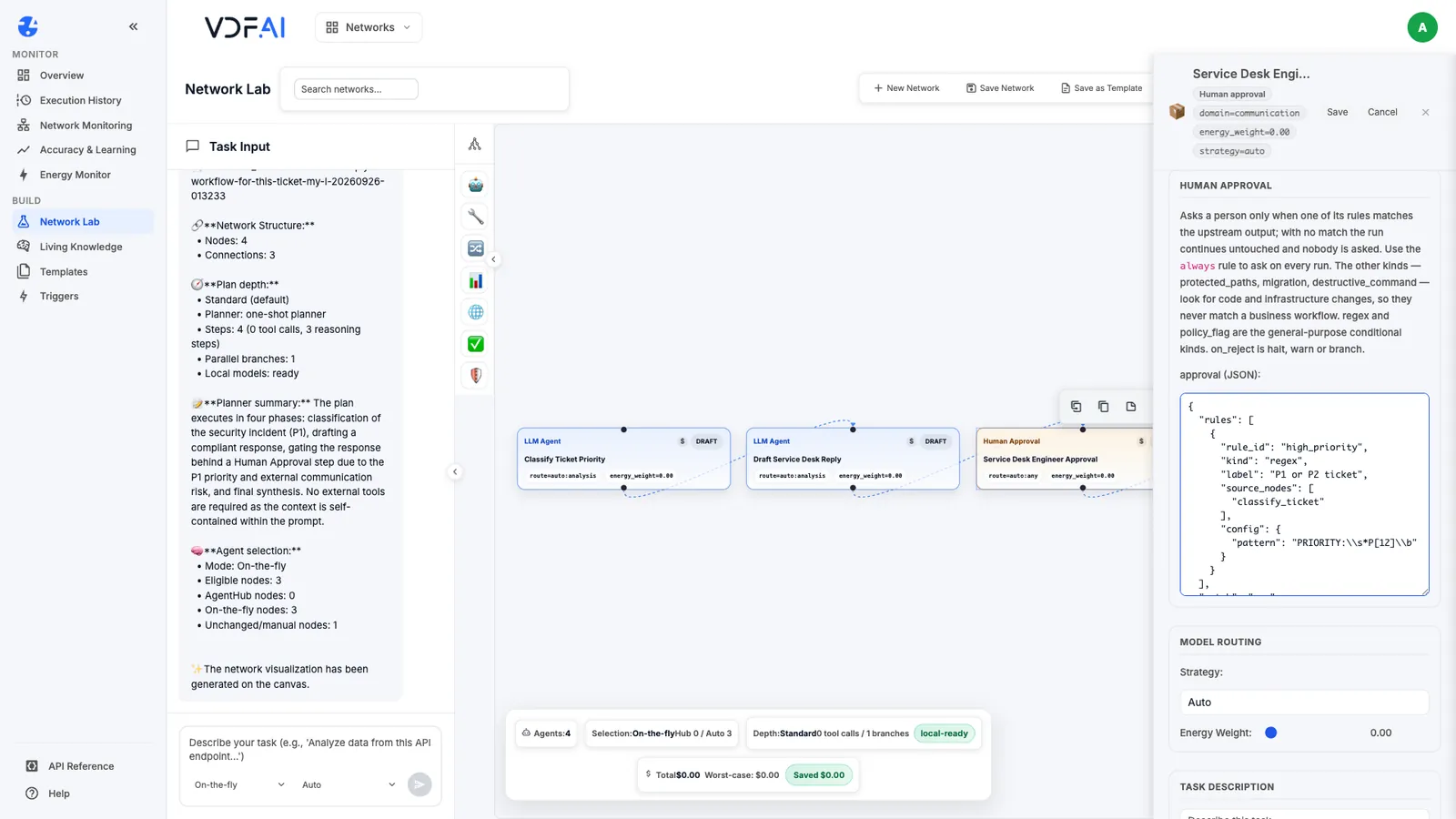
source_nodesnames the step whose output the rule reads, by its node ID; ours isclassify_ticket.patternmatchesPRIORITY: P1orPRIORITY: P2. Matching ignores case unless you turn that off.timeout_sandon_timeoutreject a request that nobody answers within 15 minutes.on_rejectdecides what a rejection does:halt,warnorbranch.approverscontrols who may decide; here the person who ran the workflow may approve.
Save the step, pin the models of the other steps as in the previous lesson, and choose Save Network.
Step 5: Approve a P1 run
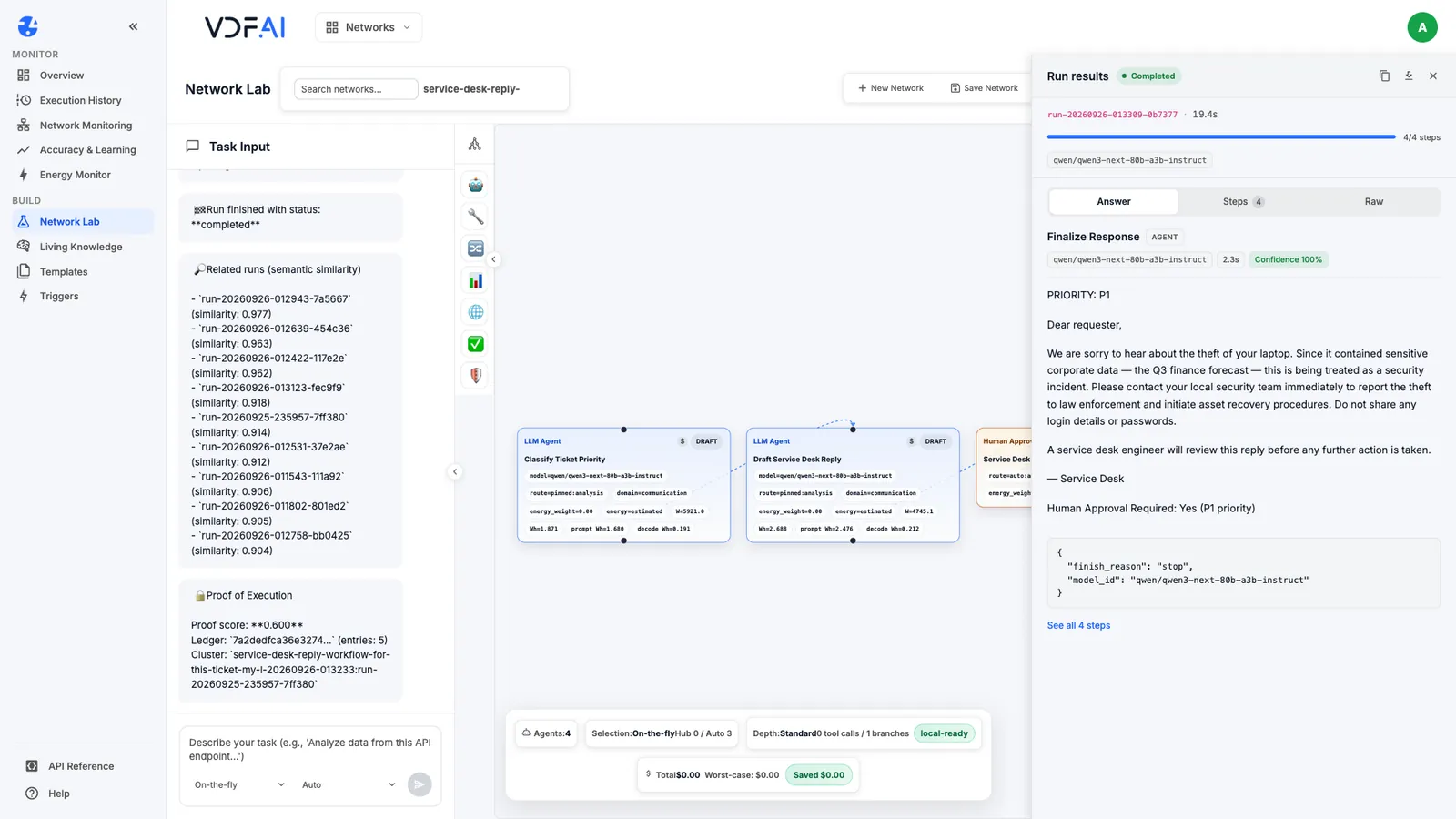
Choose Execute. The run stops at the approval step. The toolbar shows Results 2/4, and the final step has not run. The request card shows the step’s name, the rule that matched (P1 or P2 ticket), the text that triggered it (PRIORITY: P1) and your message.
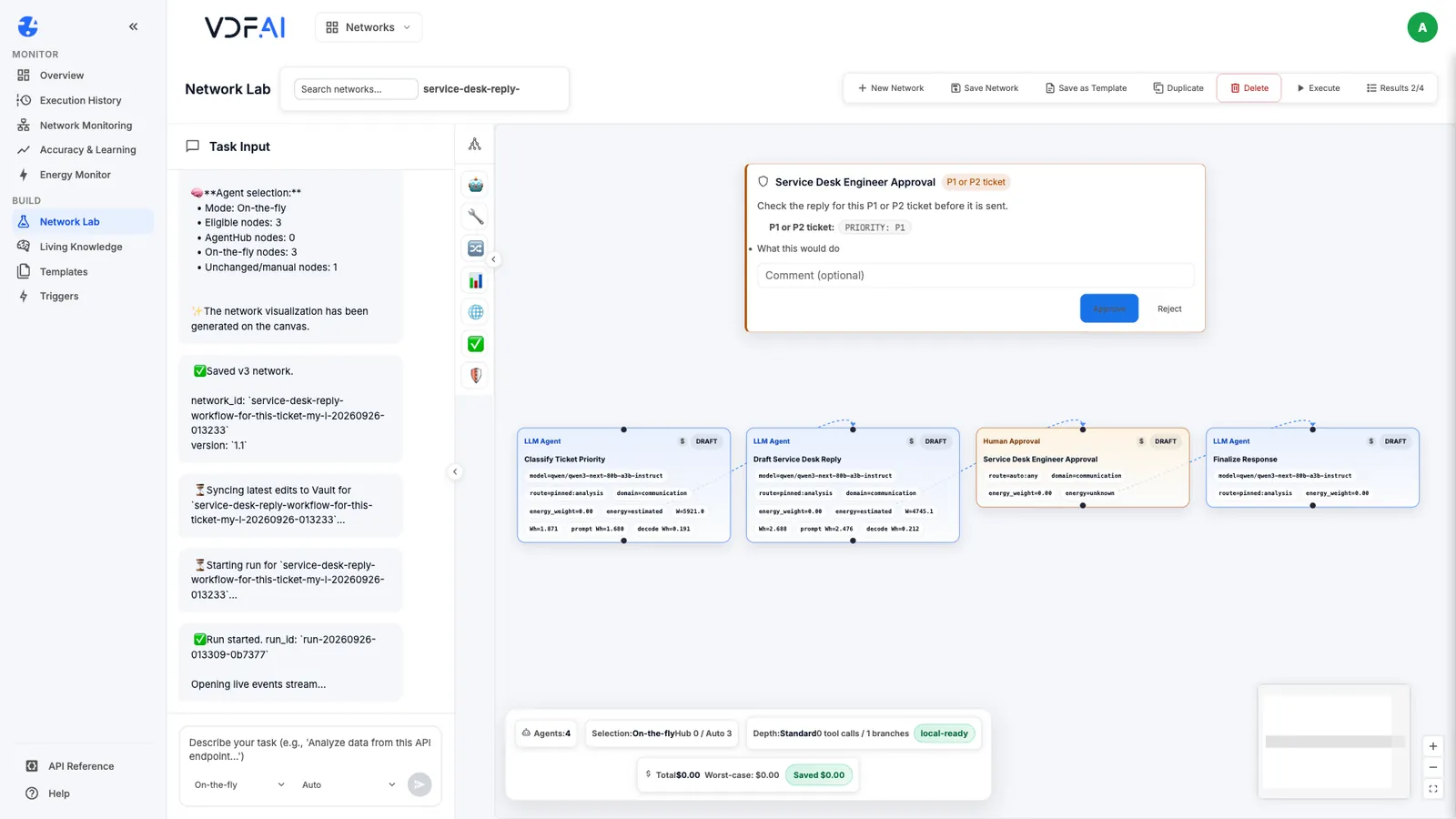
Read the reply before you decide. Add a comment for the record, such as “Checked against the reply rules. OK to send.”, and choose Approve. Our run then completed all four steps in 19.4 seconds.
The Steps tab lists the approval as a step of its own, Service Desk Engineer Approval, and its 12.2 seconds were the time the decision took.
Step 6: Test the other paths
An approval rule is only proven when you have seen it not fire, and seen a rejection. Test both.
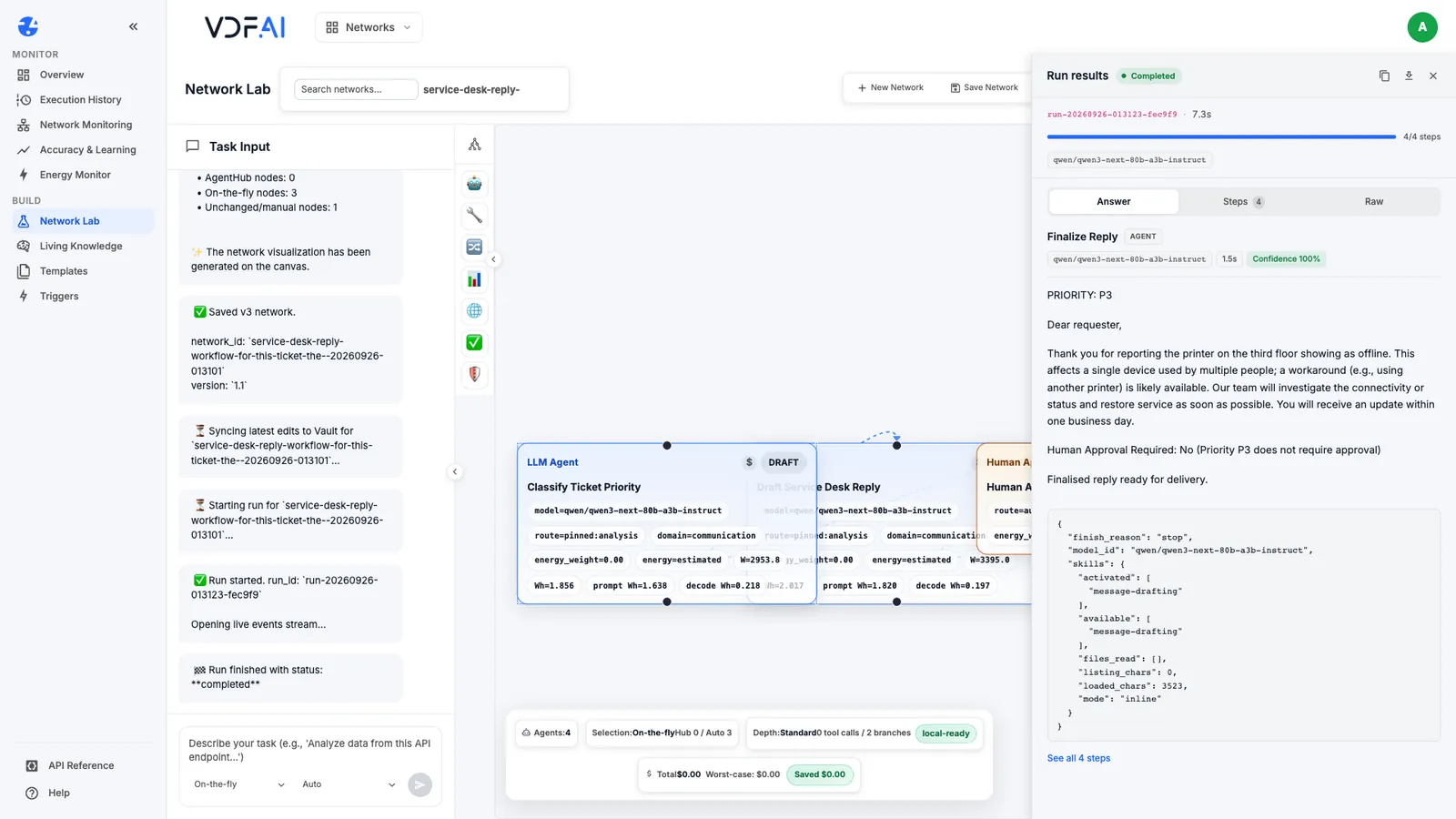
A P3 ticket. We generated the same workflow for the offline printer ticket and gave it the same rule. The classifier returned PRIORITY: P3, nobody was asked, and the run completed all four steps in 7.3 seconds.
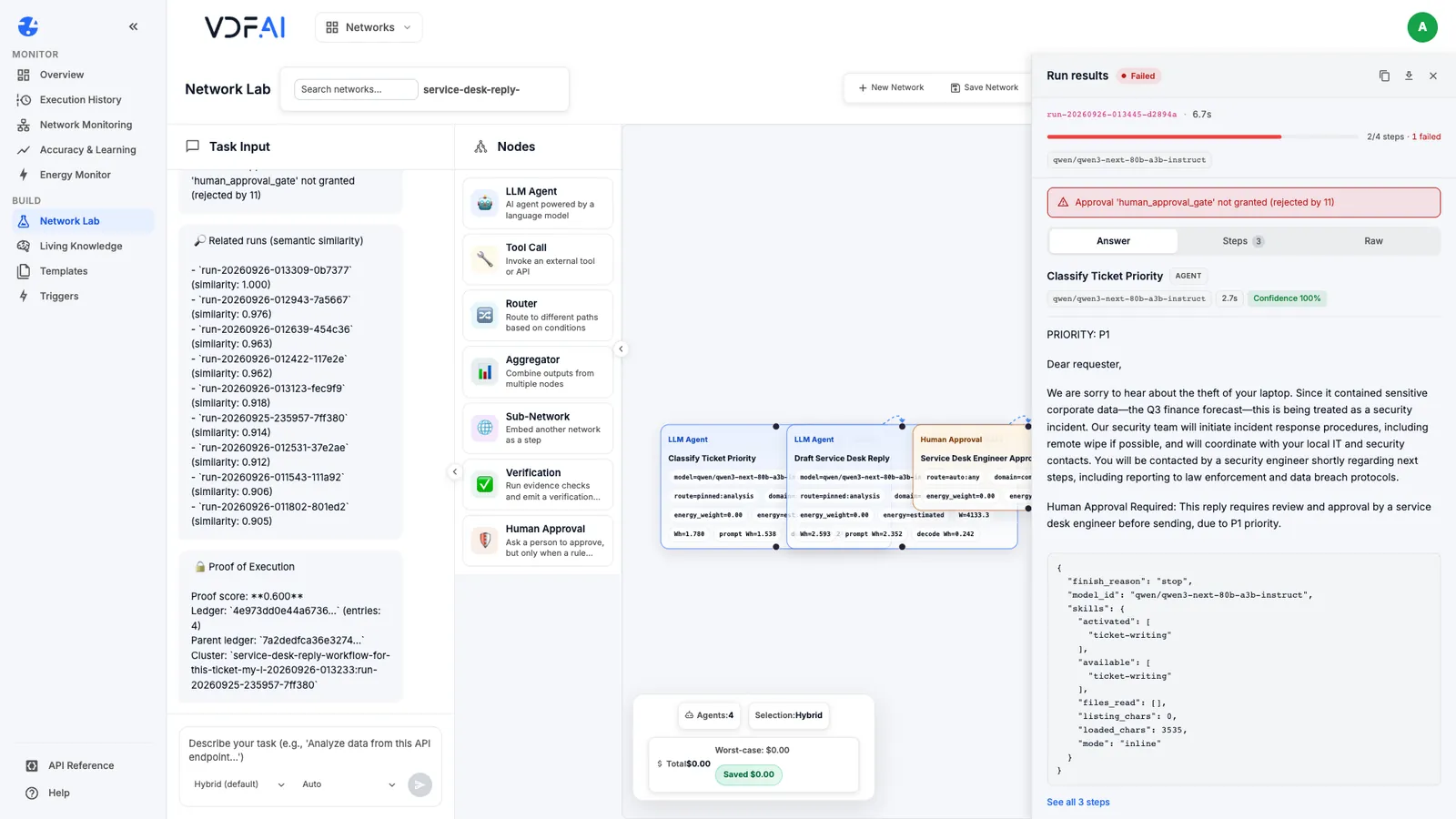
A rejection. We ran the P1 workflow again and rejected it with the comment “Reply names a timeline we cannot promise. Please redraft.” With on_reject set to halt, the run ended as failed after two of four steps, with the message that the approval was not granted. The final reply was never written.
Keep these two runs with the workflow, alongside an approved one. Whenever someone changes the rule or the classifier, run all three again.
Check your understanding
Why not ask for approval on every run?
Reviewers who are asked about every low-risk reply stop reading before they approve. Asking only where a mistake is costly keeps each approval a real decision.
Why did the classifier have to start its output with a fixed line?
The regex rule matches text in that step's output. A fixed line such as "PRIORITY: P1" gives the rule something reliable to match, whatever else the step writes.
What happened when the reviewer rejected the reply?
The run halted. It ended as failed at two of four steps, the approval was recorded as not granted, and the final reply was never written.
Reference
Build it in VDF AI
Follow along in your own workspace. The Starter plan is free, with no credit card.
Try VDF AI freeSee it on your own data
Walk through this with a VDF AI engineer, on your infrastructure and your use case.
Book a demoGo deeper with an instructor
Production Agentic Systems: Multi-Agent, RAG and Governance: four live half-days, free for customers and partners.
See the course