In this lesson you will learn to
- Split a job between specialist agents and an aggregator
- Bind workflow steps to tested agents from Agents Hub
- Make a bound agent's own instructions apply inside a workflow
- Check which sources and tools each agent really used
Before you start
- The first lesson in this path
- Tested agents in Agents Hub, such as the triage agent and fix finder from the agents path
A single agent works well for one job. Some jobs are really two or three: triage a ticket, find the fix, write the handover for the engineer. Multi-agent orchestration gives each part to a specialist agent and combines their results, so each specialist can be simpler, tested on its own and reused elsewhere.
This lesson orchestrates two specialists from earlier in the Academy, the triage agent and the fix finder, in one VDF AI network. It also shows two things that are easy to get wrong: making a reused agent behave as it did in testing, and knowing which sources a combined answer really rests on.
Step 1: Split the job between specialists
Write the split down before building anything. For an Outlook calendar sync ticket:
- Specialist 1, triage. Category, priority from P1 to P4 and a first reply to the requester.
- Specialist 2, fix finder. The official Microsoft fix, with numbered steps and the page it came from.
- Aggregator. One handover note for the engineer, combining both.
The two specialists do not need each other’s output, so they can run in parallel. The aggregator waits for both.
Step 2: Generate the parallel network
In Network Lab, set Agent selection to On-the-fly and describe the split, naming the aggregator as its own step:
Handle this IT support ticket with two specialists working in parallel:
"Outlook calendar changes are not syncing to my phone or my laptop."
Specialist 1: triage the ticket, with category, priority from P1 to P4 and a
first reply to the requester. Specialist 2: find the official Microsoft fix,
with numbered steps and the documentation page used. Step 3: an Aggregator
combines both results into one handover note for the service desk engineer.
The plan came back with three nodes, two parallel branches and a planner summary describing the two independent branches and the final aggregation.
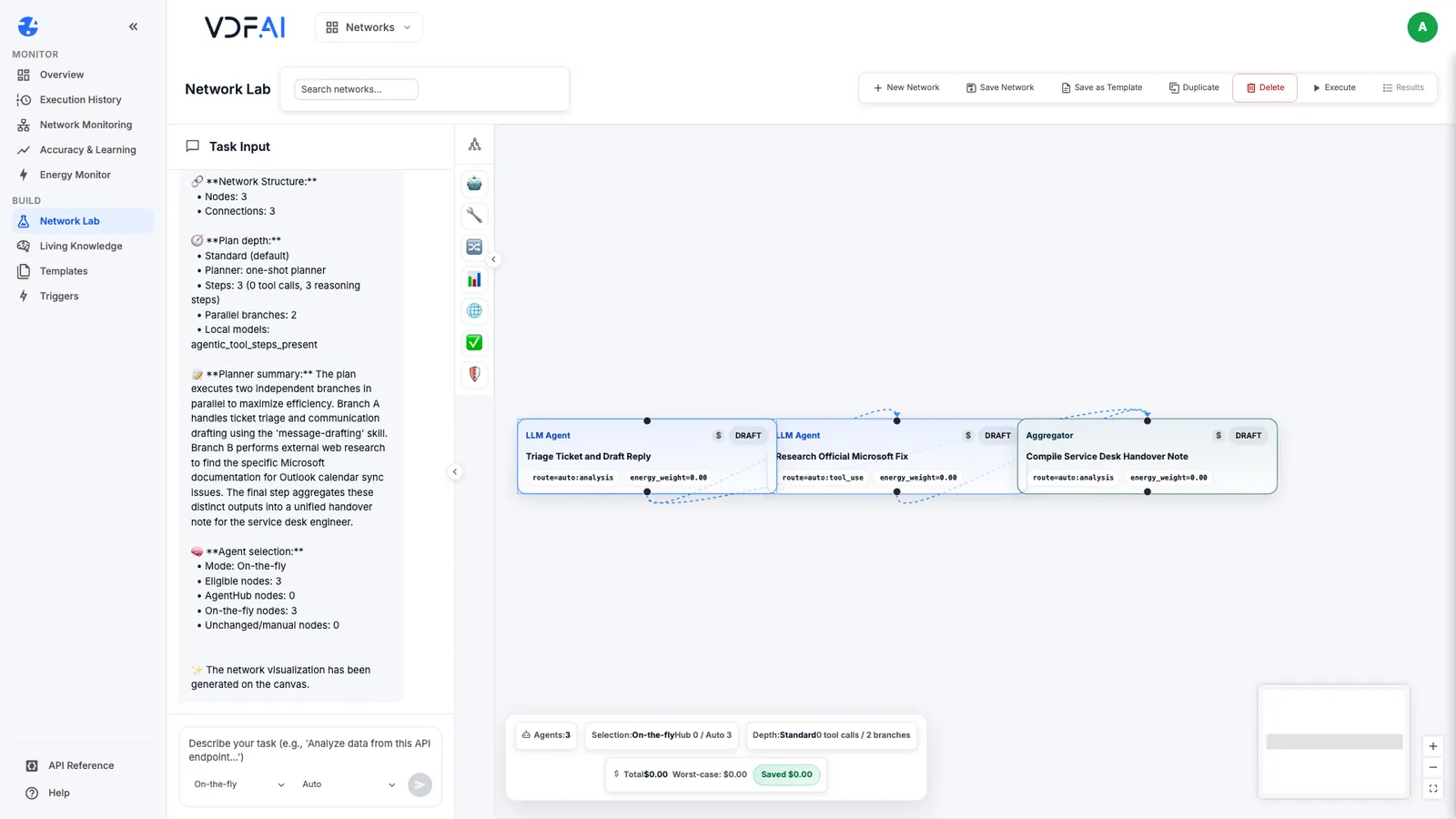
We also tried From Agents Hub, which should build the whole network from existing agents. In our run the planner reported that detailed planning did not complete, fell back to a simpler plan and left the steps without a chosen agent. Generating the structure first and binding the agents yourself, as below, gave the same structure both times we tried it.
Step 3: Bind each specialist to an Agents Hub agent
Select the triage step and choose Edit. Change Source to AgentHub, then choose the agent under AgentHub Agent. The list shows the agents available in your current workspace; ours offered exactly the two agents we added to the IT Service Desk workspace in the agents path.
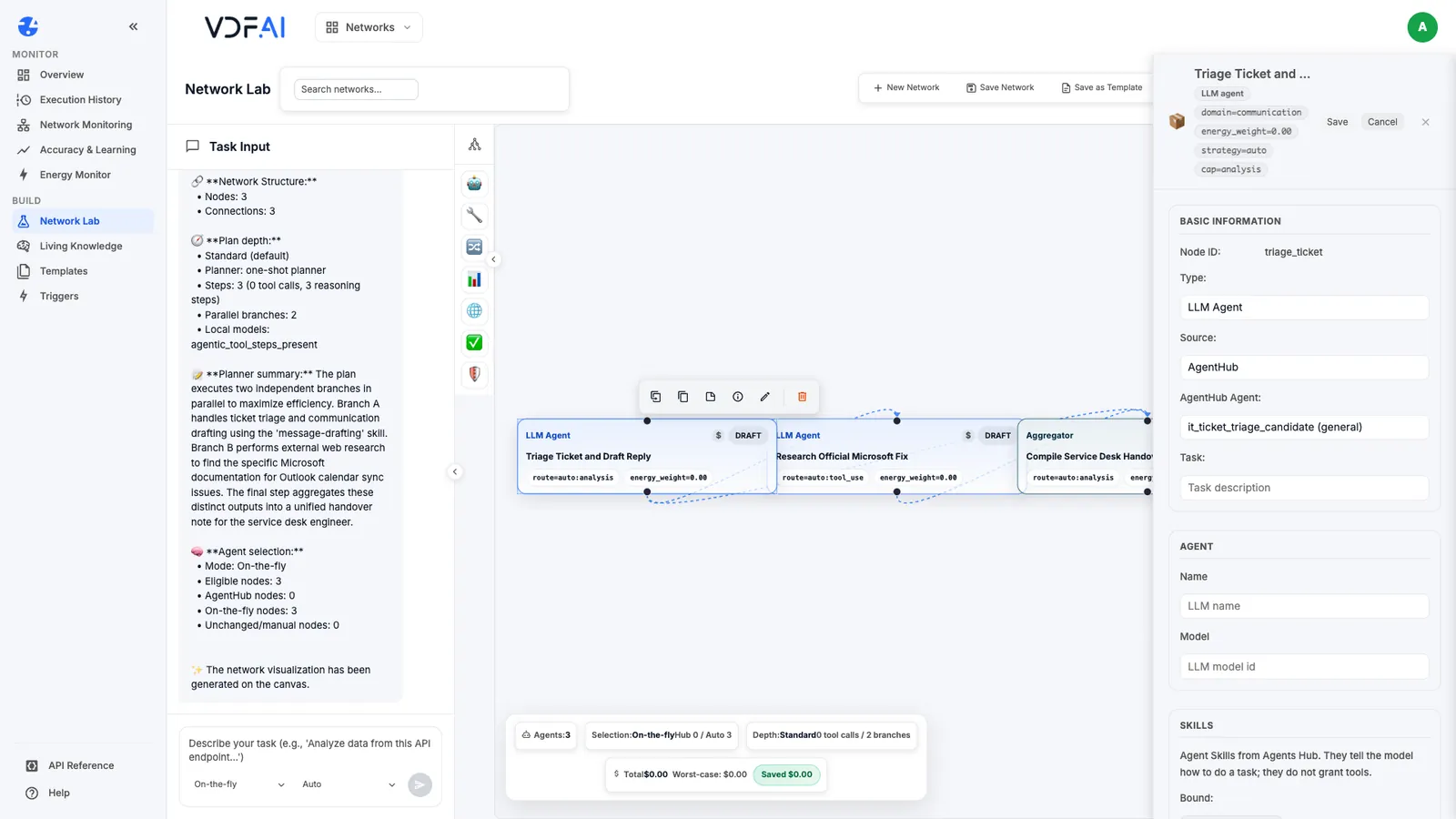
Bind the triage step to it_ticket_triage_candidate and the fix step to it_fix_finder, and Save each step.
Step 4: Clear the generated instructions
Run the network once with the agents bound and read the triage step’s output in the Steps tab. Ours ignored everything the triage agent had been tested to do: no JSON, a priority of P2 where the matrix gives P3, a “[Requester Email]” placeholder, and a time zone nobody had mentioned.
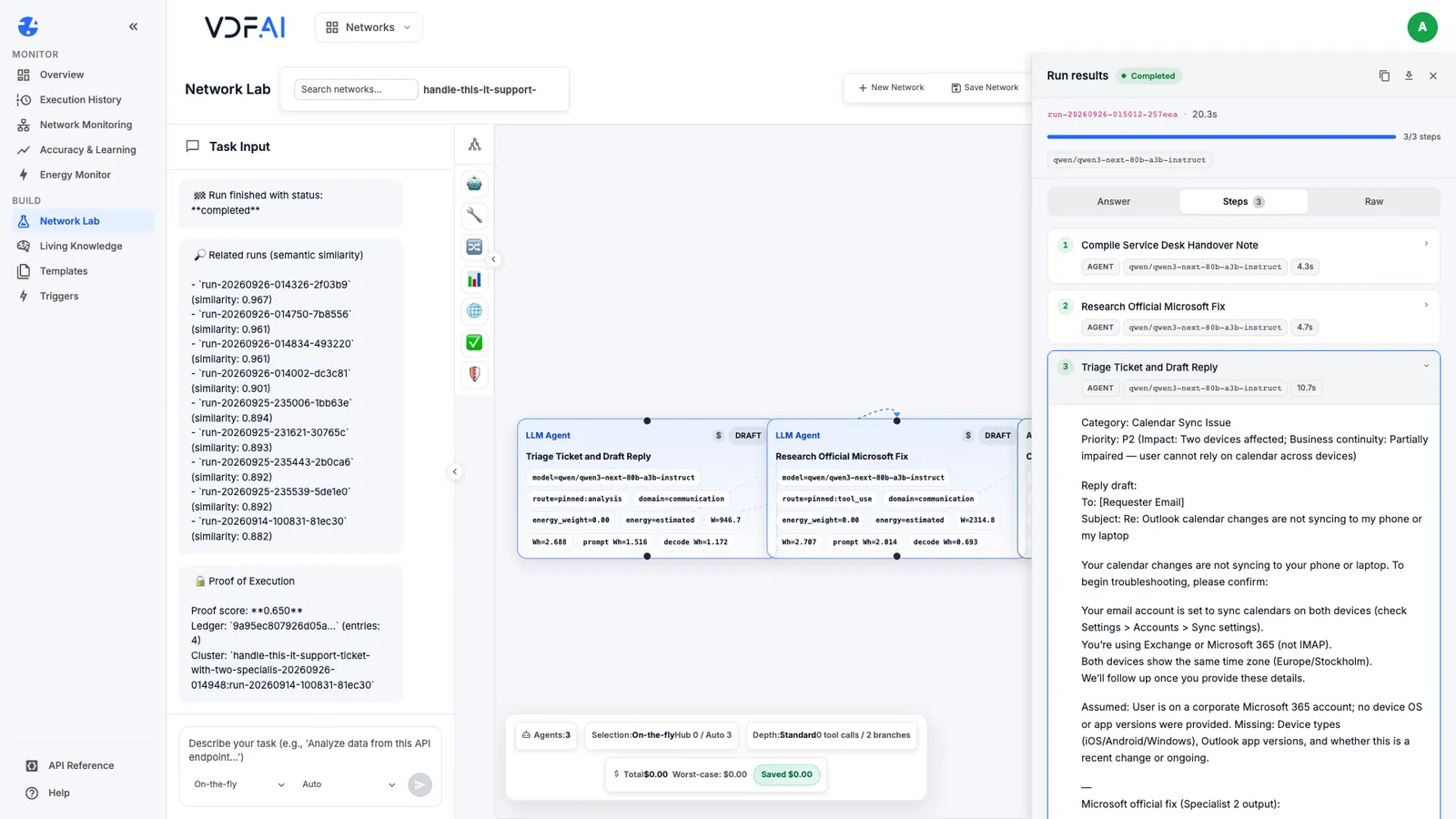
The reason is in the step’s editor. The planner gave each step its own system prompt, and a step’s own instructions take precedence over those of the agent bound to it.
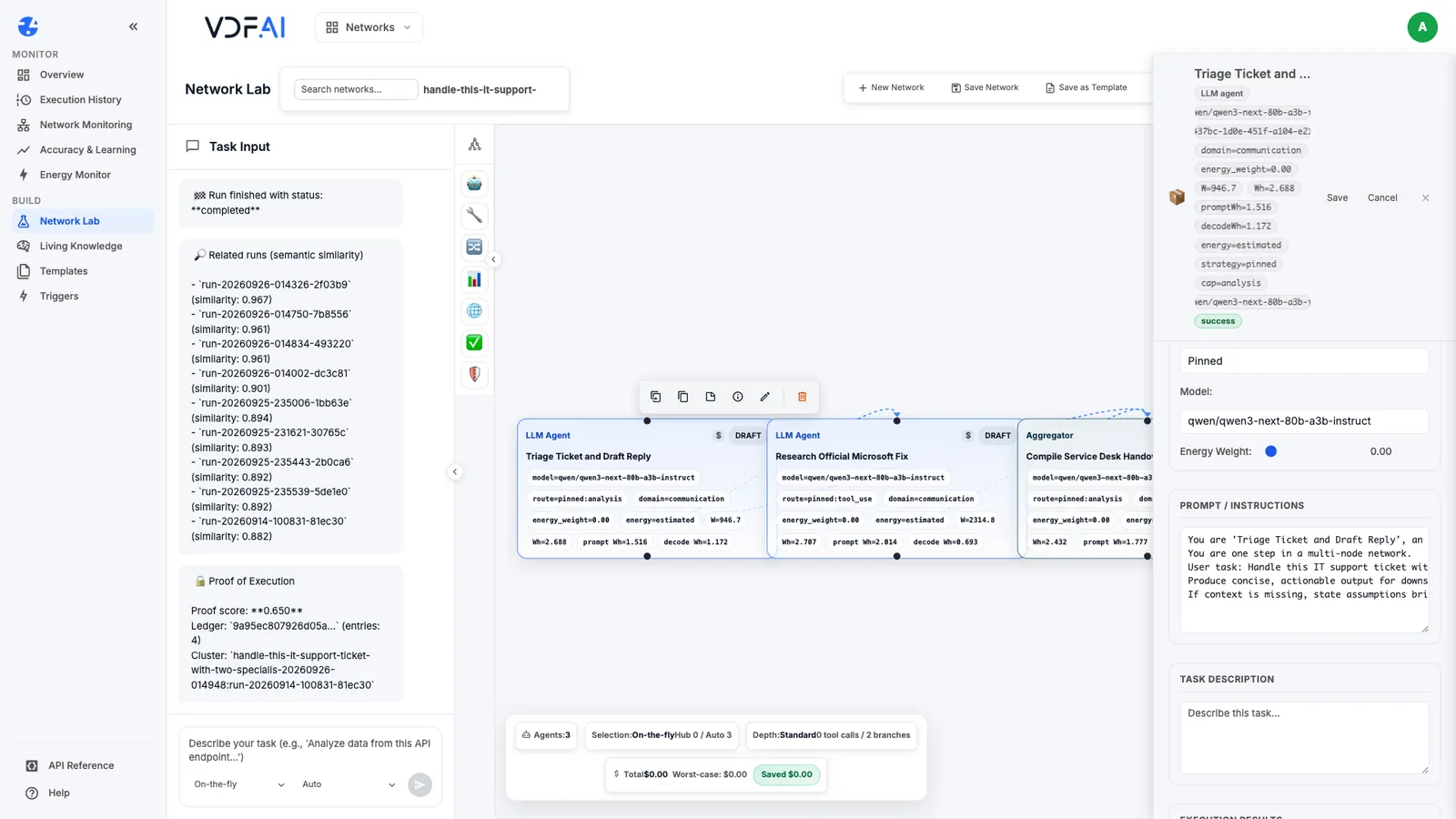
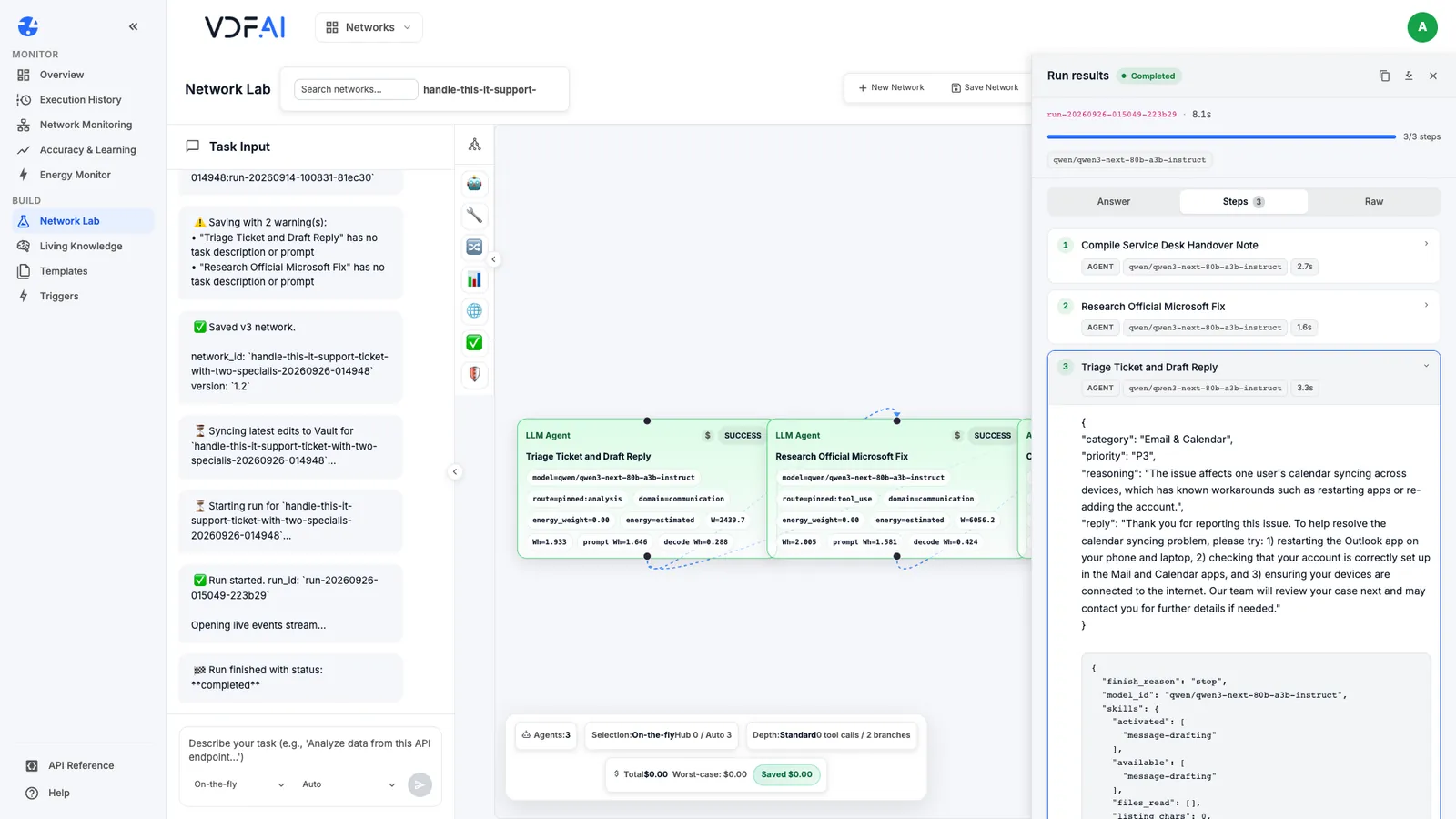
Clear the system prompt on both bound steps, save them, and run again. The triage step now answered in the agent’s own tested format:
{
  "category": "Email & Calendar",
  "priority": "P3",
  "reasoning": "The issue affects one user's calendar syncing across devices, which has known workarounds such as restarting apps or re-adding the account.",
  "reply": "Thank you for reporting this issue. ..."
}
Step 5: Pin the models and run
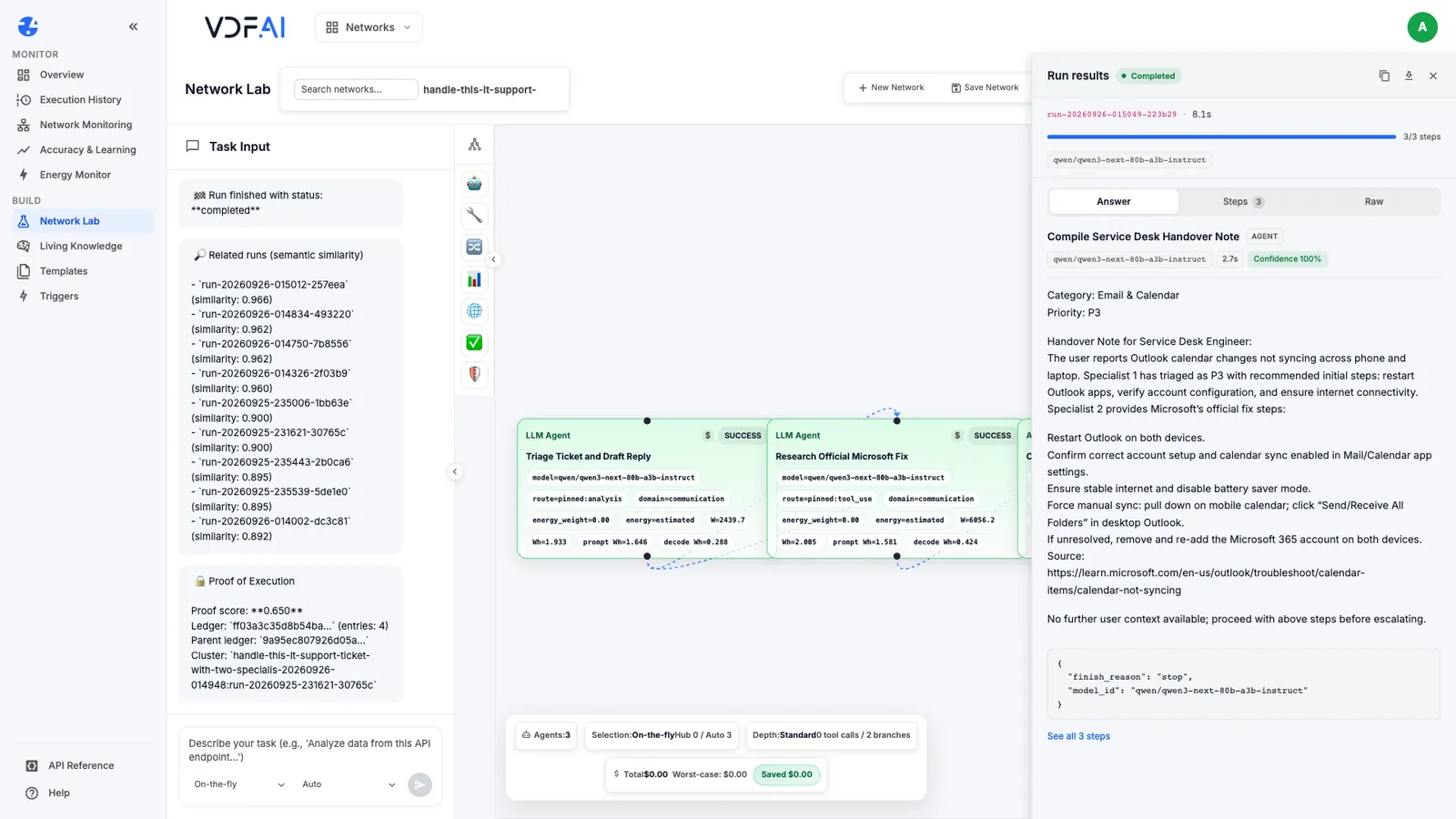
A bound step still takes its model from the step’s Model routing, not from the agent. Pin each step as in the first lesson of this path, so the agents run on the models you tested them with. With all three pinned, our run completed its three steps in 8.1 seconds, and the aggregator produced one handover note with the category, the priority, the triage steps and the fix.
Step 6: Check what each agent could reach
The handover note ended with a source: a Microsoft documentation link. Before anyone relies on it, open the fix finder’s step. It is listed as AGENT, with no tool calls, and its output contains the steps but no link.
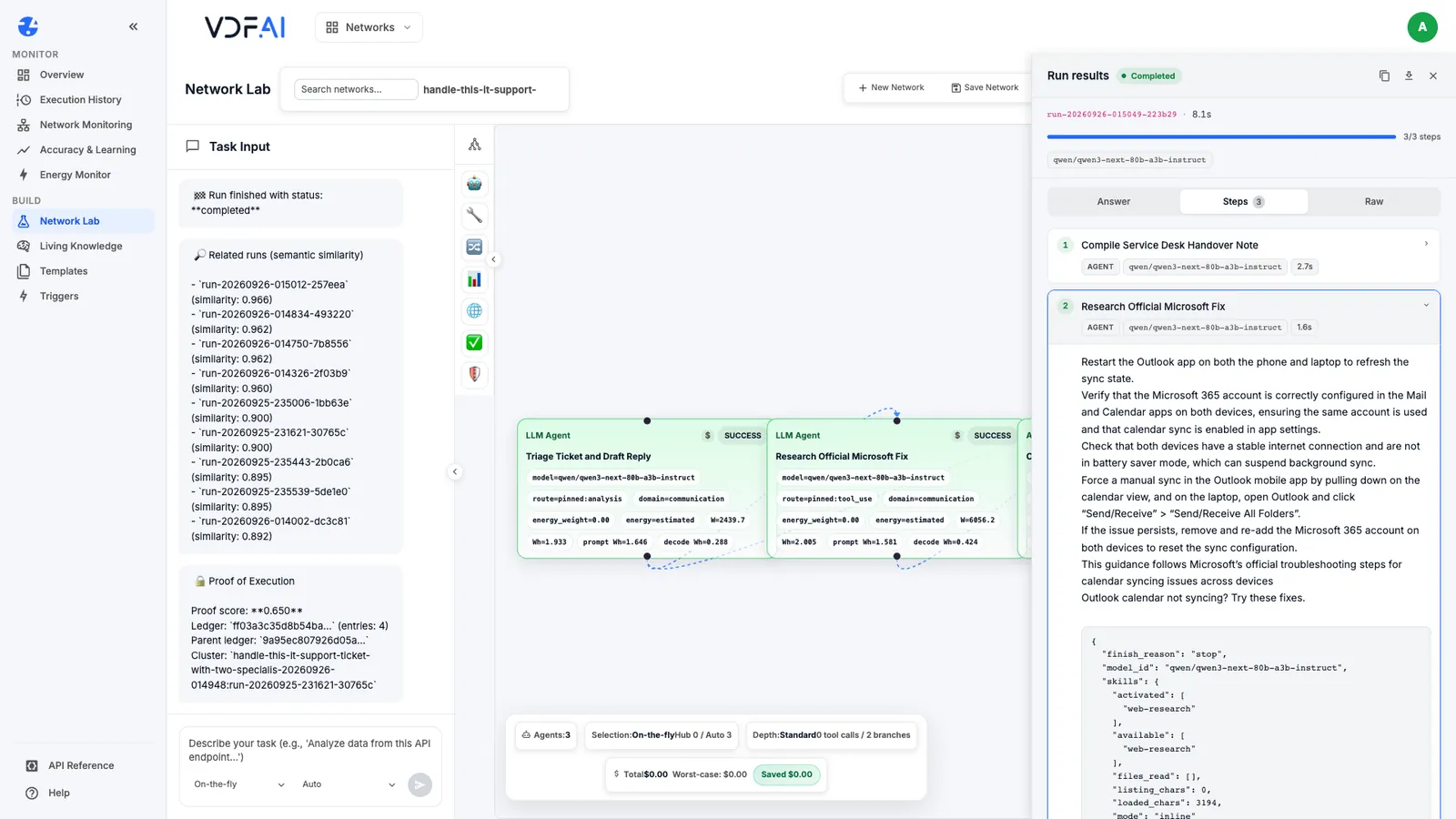
A bound agent’s tools do not automatically come with it into a workflow step. The fix finder ran without its web search, so nothing was looked up, and the link was written by the aggregator. In an earlier run of an identical network, the fix finder itself wrote a different link. Treat any source in a combined answer as unverified until a step that actually searched for it shows it in its output.
Make that check part of reading every multi-agent run:
- Open each step, not only the answer, and confirm it did what its role requires.
- For any step that must search or act, look for tool calls in its output rather than trusting the prose.
- Trace every source in the final answer back to the step that retrieved it.
Check your understanding
Why bind a workflow step to an agent from Agents Hub instead of letting the planner build one?
A Hub agent has already been tested and approved, with known instructions and grants. Binding it reuses that work, and changes to the agent reach every workflow that uses it.
The triage agent was bound, yet its output ignored the agent's JSON format. Why?
The generated step kept its own instructions, which take precedence over the agent's. Clearing the step's system prompt let the agent's tested instructions apply, and the JSON came back.
The handover note cited a Microsoft documentation page. Why was that not enough to trust it?
No step searched for it. The fix finder ran without its web tools, and the link was written by the step that combined the results, so it had to be checked before anyone used it.
Reference
Build it in VDF AI
Follow along in your own workspace. The Starter plan is free, with no credit card.
Try VDF AI freeSee it on your own data
Walk through this with a VDF AI engineer, on your infrastructure and your use case.
Book a demoGo deeper with an instructor
Production Agentic Systems: Multi-Agent, RAG and Governance: four live half-days, free for customers and partners.
See the course